Estimated Earnings vs Paid Earnings on Facebook: What the Difference Means
Your Facebook dashboard says one number, your bank says another. Here's what estimated and paid earnings mean, why they differ, and how to check the gap.
In this article
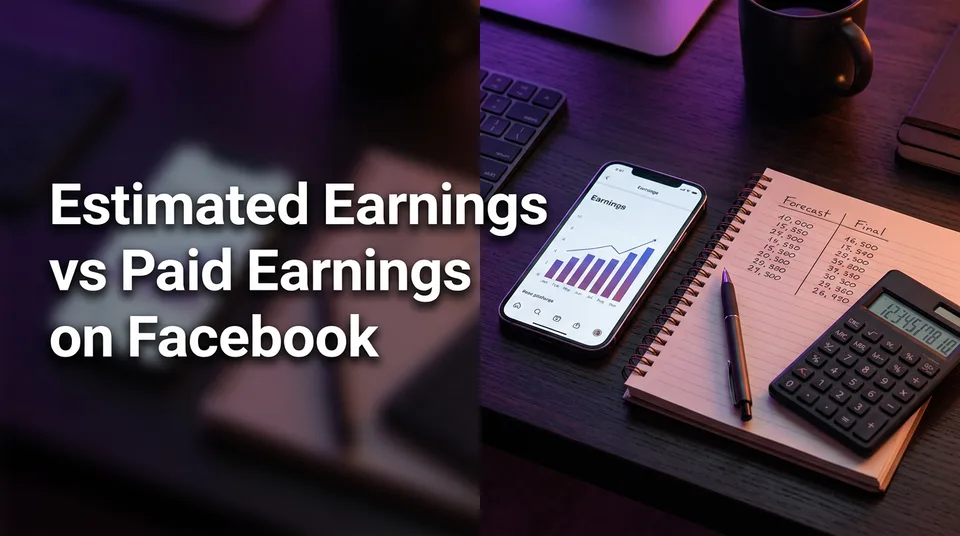
On Facebook, estimated earnings are a provisional figure the dashboard shows while revenue is still being processed and checked, and paid earnings are the final amount actually sent to your payout account. The paid number can come out lower than the estimate, and occasionally higher. Think of one as a forecast and the other as a receipt.
Key points
- Estimated earnings are provisional and can still change.
- Finalized earnings are confirmed after processing and review.
- Paid earnings are what actually reaches your payout account.
- Adjustments change the earned amount. Fees, tax and currency change what you receive.
- Payroll "gross vs net pay" is a different concept, though the analogy helps.
Estimated earnings vs paid earnings: the short definition
Estimated earnings are a running projection, not income you can count on. They sit in your Facebook content monetization reporting while impressions and revenue are still being processed, so the number can move.
Your money passes through three states. Estimated means provisional. Finalized means confirmed after checks. Paid means transferred to your payout account. Most confusion comes from treating the first state as if it were the third.
Why estimated earnings change before they are paid
Estimated earnings change because the figure is recalculated as Facebook processes and reviews the underlying activity. Three causes show up most often.
- Invalid activity: views or interactions that Facebook decides shouldn't earn are removed from the total.
- Policy review: content that is reviewed and found to break monetization rules can have its earnings adjusted or withheld.
- Reporting delays: late-arriving data means the number you saw on Tuesday isn't the number on Friday.
We've watched page owners panic over a dip that was only a reporting catch-up. We've also watched others ignore a real policy flag because the estimate still looked fine. Both mistakes are avoidable. Rules and review processes change, so check Meta's current wording in the Meta Business Help Center.
A simple example: estimate, adjustment, payout
Here's an illustration with round numbers. These are not real rates and not a promise of anything.
| Step | Amount |
|---|---|
| Estimated earnings for the month | $100 |
| Adjustment (invalid activity removed) | -$10 |
| Finalized earnings | $90 |
| Currency conversion and transfer fees | -$3 |
| Tax withholding (depends on your tax information) | -$5 |
| Amount that lands in your account | $82 |
The first deduction is an adjustment to what you earned. The last two are deductions from what you earned. Keep them separate when you investigate, because they have different fixes.
Where to see each figure in your dashboard
Estimates live in the monetization or insights area of your page, in Meta Business Suite or the Professional dashboard. Payments live in the payouts section. Menu names change often, so confirm the current labels in Meta's help pages.
Timing works the same way. Earnings are finalized after processing and review, and Meta sets the schedule. It can change, so we won't quote dates. Use the official help page for current payment timing.
Is this the same as gross vs net pay?
No. Gross vs net pay is a payroll concept: your employer's total pay before taxes and deductions versus your take-home. Estimated vs paid earnings is about whether the revenue itself is confirmed.
The "before vs after deductions" idea still helps as an analogy. But your payout can differ from finalized earnings for reasons payroll doesn't cover, like a payout threshold (a minimum balance before money is sent), payout method fees, currency conversion and tax withholding.
How to reconcile the numbers and avoid surprises
Reconcile by comparing one month at a time, not one day. Do it in this order:
- Note the estimate for the month from monetization insights.
- Find the finalized amount, then the payout in your payouts view or statement.
- Check whether a threshold delayed the payment into a later month.
- Review your payout and tax information for withholding or fees.
- Look for policy or content notices on your page.
Treat any estimate, including one from the free Facebook earnings calculator, as a forecast. And don't budget against it. If you post Reels daily, the safer habit is to plan on paid earnings only.
Where to go next
- What Is Facebook Content Monetization? Definition, Eligible Content and How It Differs From Older Programs — the parent term behind the earnings you see in the dashboard.
- Facebook Reels Monetization: How It Works, Who Can Earn and What to Expect — how earnings are generated in the first place.
- Facebook Earnings Calculator vs Real Payout: Why the Numbers Differ — the natural next read if your payout came in below the estimate.
- Facebook Reels Earnings Calculator: How to Estimate Your Reels Income — build an estimate and treat it as a forecast.
- How to Set Up Facebook Payouts and Tax Details — payout and tax setup that affect the paid amount.
- How Much Does Facebook Pay per 1,000 Views? Estimates and Variables — why per-view estimates vary.
- Facebook Monetization Violations: What Gets a Page Restricted — policy issues that can lead to earnings adjustments.
- TikTok Creator Rewards vs Facebook Content Monetization: Which Fits Your Page?
Generate your reel right now
Paste a link to any video — WowReveal writes the story, voices it and adds captions, a headline and music. Ready for Reels, Shorts and TikTok.



No link? Upload a file
- 30 free credits
- No card needed
- Voiceover in 9 languages
- Failed jobs refunded