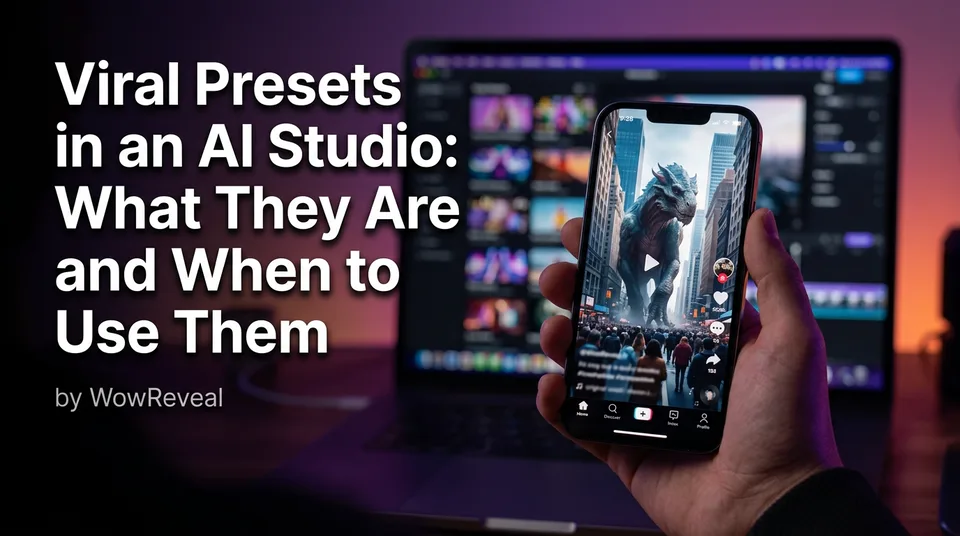
Viral Presets in an AI Studio: What They Are and When to Use Them
Viral presets are saved recipes for popular AI video formats. Here's what they contain, when they beat a custom prompt, and how to avoid looking like every other page.
In this article
AI video viral presets are ready-made bundles of prompt wording, visual style, camera movement and effects for a popular short-video format, which you apply to your own text, photo or clip to get a result faster. They speed up production but do not make a video viral.
That second sentence is the part most preset libraries skip. So let's separate what a preset actually is from what the marketing around it promises.
What are viral AI video presets?
A viral preset is a saved recipe for a format that has already worked for other creators, packaged so you don't rewrite the same prompt from scratch every time. You pick the preset inside an AI Studio, add your own subject, and the tool fills in the rest.
What a preset usually contains
Most presets are a stack of the same five things:
- Prompt wording that describes the scene and action
- A visual style (cinematic, cartoon, macro, handheld)
- A camera movement, such as a slow push-in, orbit or drone pull-back
- Effects or overlays, like smoke, light leaks or a morph
- Defaults for aspect ratio and duration, often 9:16 vertical format
You supply the variable part: a sentence, a photo or a short clip. The preset supplies everything else.
Where the word "viral" comes from (and what it does not promise)
"Viral" is a label for the format, not a prediction for your video. It usually means the effect was popular on TikTok, Instagram Reels or YouTube Shorts at some point. Nobody can promise views from it, and platforms decide distribution. Hook, topic and retention (how much of the video people actually watch) still do the heavy lifting.
Common types of presets and effects for Reels and Shorts
Most presets fall into a handful of repeatable formats, and they work as viral AI video templates because the format is instantly readable in the first second. Which ones are popular changes month to month, so check what's moving in your niche instead of trusting a static "top 10" list.
| Preset type | What it does | Works best with |
|---|---|---|
| Giant animal / scale shock | Puts an oversized creature in a real setting | Text-to-video or a background photo |
| Time-lapse transformation | Shows a before-to-after change in seconds | Image-to-video from a before photo |
| Cinematic zoom or orbit | Adds an expensive-looking camera move | A single strong still |
| Object morph | One thing turns into another | Two matching images |
| Style transfer | Redraws footage as clay, anime or oil paint | Your own short clip |
Some tools build these on video models such as Seedance, so the same preset can look different depending on the model underneath. The same logic covers viral AI images: a style preset on a still is only as good as the subject you feed it.
Preset vs custom prompt: when to use which
Use a preset when you need speed, and a custom prompt when you need your page to look like yours. Presets are best for first drafts, testing whether a format suits your audience, and proven structures you'd rather not reinvent.
A custom prompt wins when the scene is specific to your niche, your characters repeat across videos, or you want a signature look people recognize in a feed.
Here's the decision rule we'd give anyone: start with a preset to test the format, and once a format performs, rewrite it as your own prompt. Our team has watched pages burn weeks on a trending effect only to find their audience never cared. Testing cheaply first avoids that.
The originality risk: how to avoid looking like every other page
When dozens of pages run the same preset, the clips come out near-identical, and that's a problem for both viewers and monetization. Both platforms say repetitive or mass-produced content can lose eligibility. See YouTube's Partner Program policies and Meta's business help center for the current wording, since these rules change.
Even without a penalty, interchangeable videos are easy to scroll past.
A 5-step checklist to customize any preset
- Change the subject. Swap the default animal, object or location for something tied to your niche.
- Add a story. A one-line premise ("what if the neighbor's cat got this big?") gives people a reason to stay.
- Use your own voice. An AI voiceover or text-to-speech narration in your tone beats a trending sound everyone else uses.
- Restyle the captions. Distinct animated captions and a consistent headline make the clip recognizable.
- Change the pacing. Trim the preset's default length, move the payoff earlier and cut dead seconds.
Can you make a viral AI video in one click?
You can make a finished AI video in one click, but not a viral one, because a click produces a clip while virality depends on whether people watch it. Treat the output as a draft that still needs a strong hook in the first 1 to 2 seconds.
On cost, many tools offer free presets or free credits. Free tiers often cap resolution, clip length or add a watermark, so check before building a workflow around them. And there's no single "best" preset. The best one is whichever matches your niche and holds attention in your own tests.
How to try presets in an AI studio
Trying presets takes about 10 minutes if you keep the process tight. In WowReveal's AI Studio, which offers image and video generation with viral presets, the flow looks like this:
- Pick one preset that fits your niche.
- Add your own text, photo or clip as the input.
- Generate two or three variations and change one thing each time.
- Check the output is 9:16 and the key action sits away from the screen edges where app buttons cover it.
- Add captions, a headline and a voiceover, then confirm the result follows each platform's rules for Facebook Reels, YouTube Shorts, TikTok and Instagram Reels.
Post one version, watch the retention graph, and only then decide whether the preset earns a permanent place in your routine.
Frequently asked questions
Are AI video viral presets free?
Some are. Many tools give free presets or starter credits, but free plans often limit resolution, length or add a watermark. Check the output specs before you plan a posting schedule around them.
Can presets hurt a monetized page?
They can if you post near-identical clips with no original input. Platforms may treat repetitive or mass-produced content as ineligible, so add your own subject, story, voice and captions. Rules change, so check the official policy pages.
Should I use a preset or write my own prompt?
Use a preset to test a format quickly. Once it works, rewrite it as a custom prompt so your page has a look others can't copy with one click.
Where to go next
- What Is Text-to-Video AI? A Plain-English Definition — start here if the terms text-to-video and image-to-video are still fuzzy.
- AI Video Prompts for Shorts: How to Write Prompts That Work in 9:16 — the custom-prompt alternative once a preset has proven the format.
- Reused Content Policies Compared: Facebook, YouTube and TikTok — understand the originality risk of look-alike clips before you scale.
- Animated Captions for Reels: Do They Help Retention? — one of the easiest ways to make a preset clip look like yours.
- Best Free Image-to-Video AI Generators: What Free Really Includes — see what free tiers actually limit before you commit.
Generate your reel right now
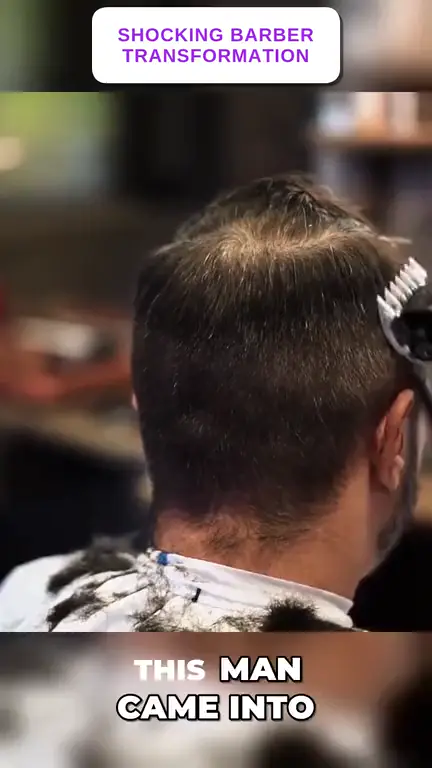
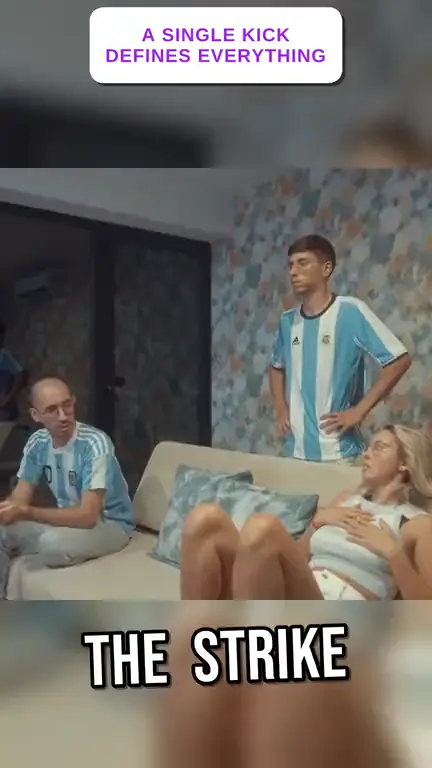
Paste a link to any video — WowReveal writes the story, voices it and adds captions, a headline and music. Ready for Reels, Shorts and TikTok.

No link? Upload a file
- 30 free credits
- No card needed
- Voiceover in 9 languages
- Failed jobs refunded