How to Make a Reel on Facebook (2026): Step by Step
Since September 2025 every video you post on Facebook is a reel, of any length or shape. Meta's own steps for a computer and the app, audience and remix settings, music, hashtags and what Meta counts as original.

In this article
Since September 2025, Facebook shares every video you post as a reel, whatever its length or orientation. To make one on a computer, open your profile, click Reels, then Create reel, add a video, write a description, choose the audience and click Publish. For effects, music or several clips in one reel, use the Facebook app for iPhone or Android. The steps below follow Meta's Help Center; menus change between versions, so use them as a map.
What a reel is on Facebook now
Meta's Help Center says Facebook has unified all video uploads under the Reels format: every video you post, except Stories and Live, is a reel and follows the privacy setting you choose. Reels are now "unified videos" of any length and any aspect ratio, and can combine several clips. Advanced editing, meaning effects, music and several clips in one reel, is in the mobile app.
On a computer, step by step
- Click your profile picture in the top right, then your name, to open your profile.
- Click Reels, then Create reel.
- Click Add video, choose a video on your computer and click Next.
- If you want, trim the video, add a description and hashtags, or choose a cover image. Click Next.
- Click Describe your reel… to add the description and hashtags. Meta notes that hashtags help people find your reel when they search; the description is optional.
- Choose the audience: Public, Friends, or Friends except. If your profile is locked, you can't choose Public.
- Switch remixing on or off. With remixing on, others can use the original audio or clips of a public reel in their own reels.
- Click Publish.
In the app: effects, music and several clips
Meta's help sends you to the Facebook app for iPhone and Android for reels with effects, music or several clips. In the app, music comes from the Audio Library:
- While you create the reel, tap Audio on the right, search for a song or someone's original audio, preview it, and tap its name to add it.
- The music covers the whole reel: one song, or one use of someone else's original audio, per reel.
- After recording, Audio and then Controls let you add music or a voiceover and set the volumes.
If a public reel uses no music or audio from the library, its sound is attributed to you as "original audio" and others may use it. Meta also warns that if the music rights change and Meta no longer has the rights to a song in your reel, the reel is blocked from being viewed by other people; you can download it and post it again with new music.
Posting as a Page
To post to a Page from the app, switch into the Page (Menu, your name, Switch profiles), tap What's on your mind?, then Photos/videos, choose the video, tap Next and Post. Editing a video on a Page is done on a computer, in Facebook or Meta Business Suite. If you are setting up as a creator, what Professional mode is explains the profile options.
Description and hashtags
Hashtags turn a word into a clickable link to posts on that topic. A hashtag is one word without spaces; numbers work, punctuation and special characters such as $ or % don't. Meta's help gives no number for reels. Whether they help at all is discussed in hashtags for Facebook Reels, and a free hashtag generator can give ideas to choose from.
Original reels: Meta's rule of 2026
On 13 March 2026 Meta published what it counts as original on Facebook. Content you film or produce yourself is original. Reels that use third-party content are original when the focus is an on-screen presence from you presenting something genuinely new, such as fresh information, analysis or a substantially improved storyline. Watching along, reacting with facial expressions, stitching clips together or narrating what is already on screen without adding anything meaningful is unoriginal, and so are low-value changes such as borders, a different speed or inserted captions; Meta deprioritizes such reels in Feed and Reels. The details are in AI or repurposed video on Facebook, and how Facebook counts reel views in reach vs plays.
Make the video in WowReveal, then post it
WowReveal makes the vertical video from your own footage: it cuts the best parts to 9:16, writes and voices a story in one of 27 languages and adds captions, a headline and music.
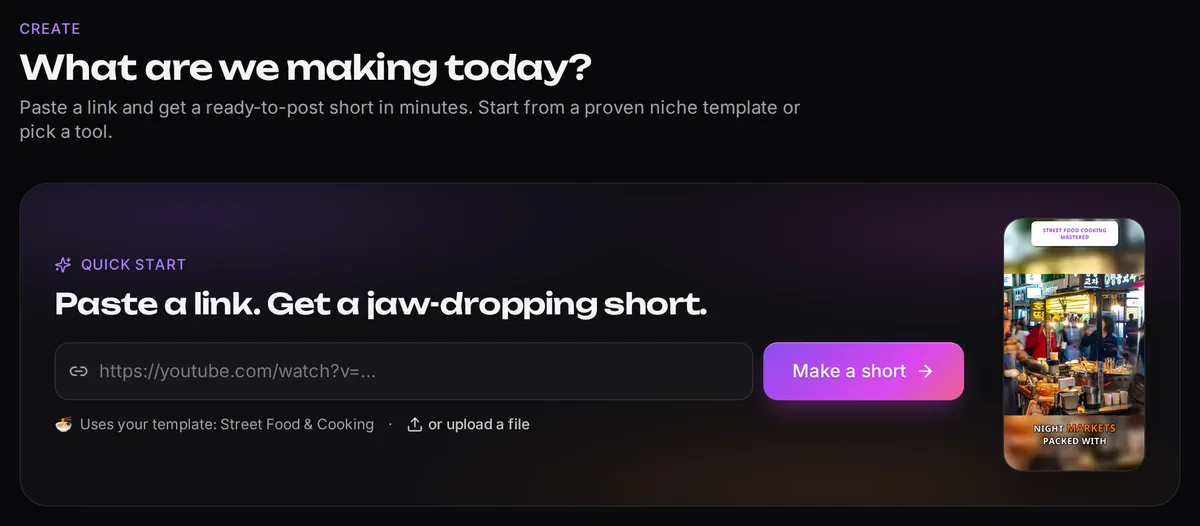
- Paste a link to your video or upload it, then choose a template; the AI voiceover page shows what the voice can do.
- Choose the voice, the caption style and the music.
- Download the MP4 and post it with the steps above. Post Kit can write the description and hashtags.
Or let WowReveal post it: on the Creator plan and above, connect your Facebook Page in Settings and press Schedule on the finished video, and it goes out as a Reel now or at the time you pick. Under Meta's 2026 rule, a voiceover and captions over someone else's footage do not make a reel original on their own: your own footage, or you on screen adding something new, is what counts.
Sources
Checked on 24 November 2026.
- Create a reel on Facebook (Facebook Help Center)
- Add music or someone else's audio when creating a reel on Facebook (Facebook Help Center)
- Post or edit a video on your Facebook Page (Facebook Help Center)
- How do I use hashtags on Facebook? (Facebook Help Center)
- Supporting creators who post original content on Facebook (Meta for Creators, 13 March 2026)
Frequently asked questions
How do I make a Reel on Facebook?
On a computer, open your profile, click Reels, then Create reel, add a video, write a description, choose the audience and click Publish. For effects, music or several clips, use the Facebook app for iPhone or Android.
How long can a Facebook Reel be?
Meta's Help Center says reels on Facebook are now unified videos of any length and any aspect ratio: since September 2025 every video you post, except Stories and Live, is shared as a reel.
Why can't I add music to my reel on a computer?
Meta's help points to the mobile app for reels with effects, music or several clips. In the app, music comes from the Audio Library: one song, or one use of someone's original audio, per reel.
Can I choose a cover for a Facebook Reel?
Yes. When you upload on a computer, after adding the video you can trim it, add a description and hashtags, or choose a cover image.
Who can see my Facebook Reel?
The audience you choose: Public, Friends, or Friends except. If your profile is locked you can't choose Public, and the original audio of a private reel can't be reused by others.
Does a voiceover make someone else's video original on Facebook?
Not on its own. Since 13 March 2026 Meta counts third-party footage as original when the focus is you on screen presenting something genuinely new; narrating what's already on screen without adding anything meaningful is unoriginal. Meta alone decides.
Generate your reel right now
Paste a link to any video — WowReveal writes the story, voices it and adds captions, a headline and music. Ready for Reels, Shorts and TikTok.
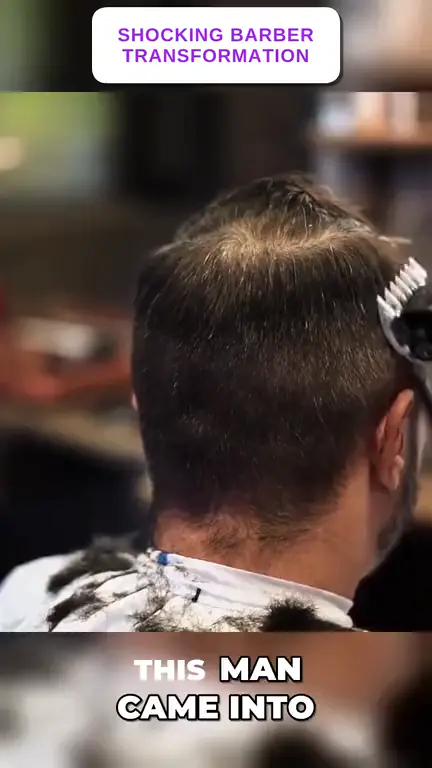


No link? Upload a file
- 30 free credits
- No card needed
- Voiceover in 27 languages
- Failed jobs refunded
Hrant Melkonyan
Founder of WowReveal. Makes AI videos himself: one of his TikTok videos passed 2 million views. Builds the AI pipelines behind WowReveal and ReelForge that turn long videos into vertical Reels and Shorts with voiceover, dubbing and animated captions. Based in Yerevan, Armenia.
About WowReveal →