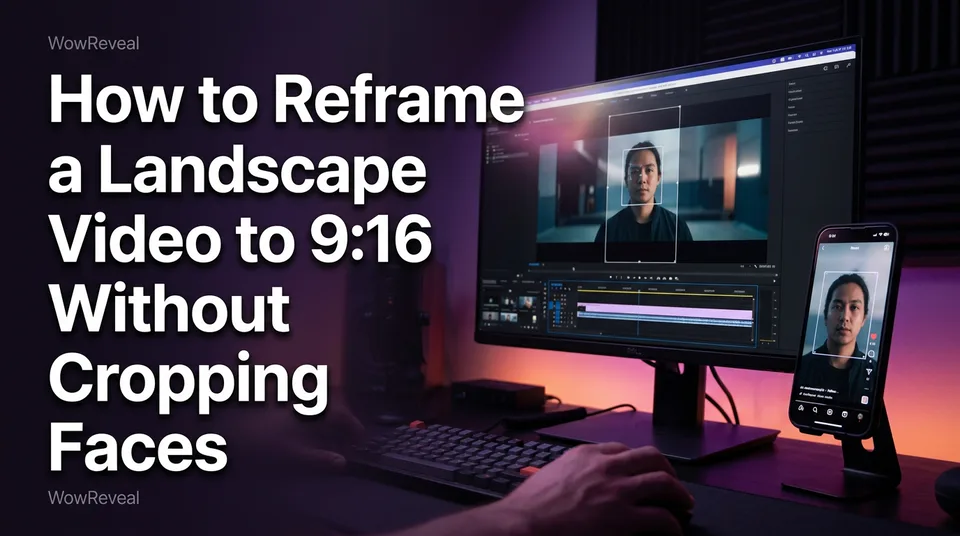
How to Reframe a Landscape Video to 9:16 Without Cropping Faces
A center crop keeps only 31.6% of a 16:9 frame. Here's how to get a clean 1080x1920 video with faces in frame, and which of three methods fits your footage.
In this article
To reframe video to 9:16, set the canvas to 1080x1920, then do one of three things: crop with the subject centered, fit the full frame over a blurred background, or use AI auto-reframe that follows the face. Auto-reframe is the safest choice when faces move. The other two work in specific cases, and picking the wrong one is how pages end up posting clips where someone's forehead is the star.
The short answer: three ways to go from 16:9 to 9:16
You can convert a horizontal video to vertical by cropping it, fitting it on a blurred background, or letting AI auto-reframe track the subject. All three end in the same file: 9:16, 1080x1920, MP4.
- Crop: cut a tall slice out of the wide frame and position it on the speaker.
- Blurred background: keep the whole 16:9 frame in the middle and fill the empty top and bottom with a blurred copy.
- Auto-reframe: software detects faces or action and moves the crop window for you.
Vertical is the native format now. YouTube Help describes Shorts as vertical or square video, though rules and limits change, so check the current help pages for each platform.
Why a simple crop cuts off faces
A center 9:16 crop of a 1920x1080 frame keeps only about 31.6% of the width, because the window is just 608 pixels wide (1080 x 9/16, rounded). That means you lose roughly 68% of the picture.
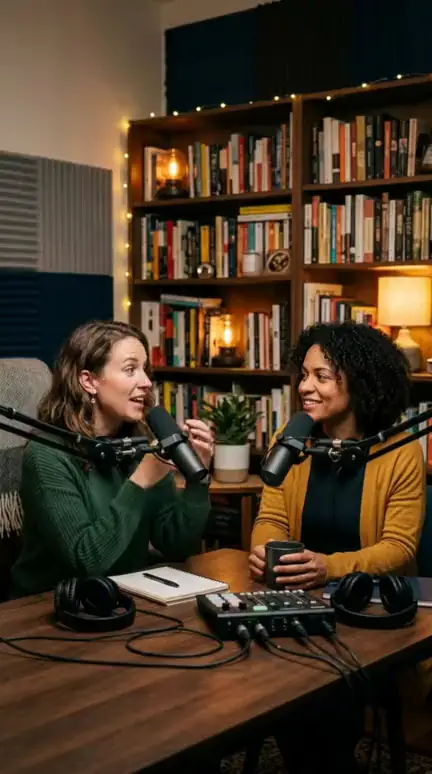
Anyone standing left or right of center is gone. Two people on a podcast set, a guest leaning toward the host, a player running to the edge of the pitch: all outside the 608 pixels.
The common mistake is exactly this. People hit a "9:16" preset, trust the preview thumbnail, and post a clip with a face half out of frame. We've watched pages do it for weeks before noticing why their retention was weak.
Method 1: Crop and reposition the frame
Crop works for a landscape-to-portrait conversion when one person sits still and the shot never changes. Think a single speaker at a desk, or a tutorial presenter.
- Create a 1080x1920 project.
- Scale the footage until it fills the height.
- Drag the frame so the face sits in the upper-middle, with eyes about a third of the way down.
- Scrub through the whole clip and keyframe the position if the speaker shifts.
Mind the quality risk. Cropping a 1080p source and scaling it up to 1080x1920 softens the image by about 1.78x. A 4K source is much better for tight crops, since you can crop deep and still export sharp.
Method 2: Fit the full frame on a blurred background
The blurred-background fit lets you convert a video to 9:16 without cropping anything, which makes it the right pick for screen recordings, wide landscapes and frames with text near the edges.
Place the 16:9 clip at full width (1080 px wide, about 608 px tall) in the middle of the canvas. Duplicate it underneath, scale it to fill 1920 px of height, and apply a strong blur.
The downsides are real. The subject ends up small, using only about a third of the vertical screen. And on its own this method adds no original value: it's the same footage in a different box, which is a problem for originality checks on Facebook content monetization. Add commentary, captions or editing, and only use footage you own or have permission to use.
Method 3: AI auto-reframe that follows the face
AI auto-reframe detects faces or the main action and moves the 9:16 window across the 16:9 frame automatically. It's the best option for moving speakers, interviews and two-person podcasts.
The procedure is short. Upload the clip, choose 9:16, let it analyze, then scrub the result. Most tools also let you correct the crop where tracking drifted.
It has limits. When two people talk at once, the window has to pick one, or it jumps between them. Fast sports footage can lose the ball. Dark or tiny faces get missed. Always watch the output, whatever tool made it.
WowReveal's AI Clipper finds the best moments in a long video and renders them as 9:16 shorts with captions, headline and music. We still tell people to preview framing on every clip.
Which method fits which content
Match the method to how much the subject moves and how much of the wide frame matters.
| Content | Best method | Why |
|---|---|---|
| One static speaker | Crop | One position, minimal drift |
| Two-person podcast | Auto-reframe | Window must follow whoever talks |
| Screen share or slides | Blurred background | Text at the edges must stay visible |
| Wide sports or action | Auto-reframe, or blurred background for full-pitch plays | Action moves across the whole frame |
When in doubt, auto-reframe first, then fall back to the blurred fit.
Check faces and safe zones before you export
Run a 20-second check before every export, because the preview in your editor doesn't show the buttons the app will draw on top.
- Scrub at three points: start, middle, end. Is every face fully inside the frame?
- Keep faces out of the bottom fifth or so and away from the right edge, where captions and like, comment and share buttons sit. Exact safe zones differ by platform and change, so test on Facebook Reels, Instagram Reels, TikTok and YouTube Shorts if you post to all four.
- Move your captions off faces.
- Confirm the export: 1080x1920, MP4, within each platform's length and size limits.
Finally, check the free-tool fine print. Online resizers such as Canva and Kapwing have free tiers whose watermark and resolution rules vary, so export one test file and look at it before posting. A logo stuck in a corner can hurt a page more than a slightly imperfect crop.
Frequently asked questions
Can I convert a video to 9:16 without cropping anything?
Yes. Use the blurred-background fit, which keeps the full 16:9 frame in the middle of a 1080x1920 canvas. The subject appears smaller, so it suits screen recordings and wide scenes better than talking heads.
Does reframing alone make a clip original for Facebook?
No. Changing the aspect ratio adds no original value by itself. Use your own footage or content you have permission to use, and add real edits, commentary or a story. Platform rules change, so check Meta's current guidance.
Where to go next
- How to Turn a YouTube Video into Shorts (Step by Step) — the next step if your 16:9 source is a long YouTube video.
- Free AI Video Clipper: What You Get, What the Limits Are, and When to Pay — what to expect from free auto-reframe tools, including watermarks and caps.
- Can You Post AI or Repurposed Video on Facebook Without Breaking Originality Rules? — a reframed clip alone may not count as original.
- How to Post the Same Video on Reels, Shorts and TikTok Safely — what to do once your 9:16 file is ready for several platforms.
- Repurposing Long Video into Shorts: The Complete Workflow — the full workflow, of which reframing is one step.
Generate your reel right now
Paste a link to a long video — AI finds the best moments and turns them into ready Shorts with captions.

No link? Upload a file
- 30 free credits
- No card needed
- Voiceover in 9 languages
- Failed jobs refunded