How to Turn a YouTube Video into Shorts (Step by Step)
Two ways to turn a long YouTube video into Shorts, one clip at a time or many at once, with a simple rule for picking between them and a checklist to run before you export.
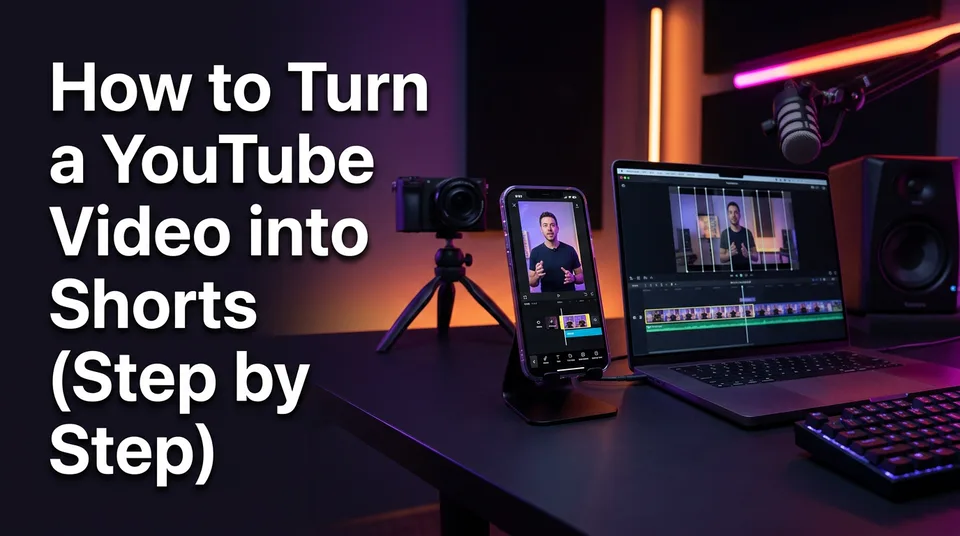
Yes, you can turn a YouTube video into Shorts, and there are two real ways to do it: YouTube's built-in Edit into a Short tool, which lets you pick up to 60 seconds of an existing video, or an AI clipper that finds the best moments and reframes them to 9:16. Both work for your own videos or ones you hold a license for. Neither is a license to clip someone else's content.
Can You Turn a YouTube Video into a Short?
You can, but YouTube won't do it for you. It does not automatically convert long videos into YouTube Shorts. Every Short is something you create on purpose, either from the watch page or by editing the file and uploading it again.
The rights question comes first. Use your own videos, or footage you're licensed to reuse. Clipping another creator's video can bring a copyright claim, and even without one it can trip reused-content rules and cost you monetization. We've watched pages lose reach for weeks after pushing out a few unoriginal clips. It's not worth it.
Method 1: Use YouTube's Built-In Tool (Mobile)
The native route is free, adds no watermark, and takes about 2 minutes per clip. It's the right choice when you need one Short from one video. YouTube documents the flow on its help page for creating Shorts from existing videos, and the menus change now and then, so check it if a button looks different.
- Open the YouTube app and go to the watch page of your own video.
- Tap Remix, then Edit into a Short.
- Drag the selector to the part you want. The tool allows up to 60 seconds of the original.
- Trim the start so the first frame already has something happening.
- Add captions or text, music if you want it, then tap Next.
- Write a title, set visibility, and publish.
That's it. The catch is that you do one clip at a time, and you pick the moment yourself. If you have a 40-minute video, finding five good moments by scrubbing is slow.
How to Turn a YouTube Video into a Short on PC
On a PC, the workaround is to download your own video from YouTube Studio, edit it to vertical, and upload it as a Short. The Edit into a Short button is built around the mobile app, so the desktop route is manual.
- Open YouTube Studio, go to Content, and find the video.
- Use the three-dot menu and choose Download (this is available for videos you own).
- Cut your clip in any editor and export it as 9:16 vertical.
- Upload it through YouTube Studio like any other video.
YouTube treats an upload as a Short based on its vertical or square shape and its length. The YouTube Shorts specs page has the current limits. Shorts uploads have been allowed to run longer than 60 seconds, up to 3 minutes at last check, but that's a rule that can change, so confirm before you plan around it. The other desktop option is a web AI clipper, which skips the download-edit-upload loop entirely.
Method 2: Use an AI Clipper to Make Several Shorts at Once
An AI clipper is the better tool when one long video should become five or ten Shorts. It reads the video, scores the moments, and gives you clips already reframed to vertical. The WowReveal AI Clipper is one example. Here's how that workflow runs:
- Paste a link to your video or upload the file.
- Let the AI find the best moments, then keep the ones with a clear payoff.
- Check the auto-reframe, so the speaker or action stays in the frame.
- Add animated captions, a headline, music and a cover.
- Render in 9:16 and post to YouTube Shorts, Facebook Reels, TikTok or Instagram Reels.
The AI picks candidates. You still decide. We'd never publish a batch without watching each clip once, because a clip that starts mid-sentence will flop no matter how good the tool is.
Free and without a watermark: what to check
Free tools often stamp a watermark on exports, and that logo can hurt reach on TikTok and Reels. Before you build a routine around any tool, export one test clip and look at it. That goes for ours too. WowReveal starts with free credits and needs no card, so you can run that test at no cost. Also check the resolution, since you want 1080x1920.
Native Tool vs AI Converter: Which Should You Use?
Use the native tool for one quick clip from your own video on your phone, and use an AI converter when you want many clips, automatic reframing and captions. The rule is simple: one clip means native, many clips means AI.
| Native Edit into a Short | AI clipper | |
|---|---|---|
| Clips per video | One at a time | Several at once |
| Finding moments | Manual | Automatic suggestions |
| Reframing to 9:16 | Basic | Subject-aware |
| Captions | Manual | Animated, automatic |
| Speed | About 2 minutes per clip | Minutes for a batch |
| Cost | Free, no watermark | Free credits, then paid; check exports |
| Best on | Mobile | Mobile or PC |
If you post daily or run several pages, the manual route stops scaling fast.
Format Settings: 9:16, Length and Captions
Export Shorts at 9:16 vertical, 1080x1920, with captions placed away from the bottom of the screen. The bottom strip is covered by the title, channel name and buttons on every platform, so text there gets hidden.
- Aspect ratio: 1080x1920. Anything wider gets black bars or a bad crop.
- Length: the native tool picks up to 60 seconds. Shorter clips usually hold retention better, so aim for 20 to 45 seconds unless the moment truly needs more.
- Captions: burned in, large, high contrast, kept inside the safe zone. Many people watch with the sound off.
Two Mistakes That Ruin Converted Shorts
The two mistakes are center-cropping without reframing the subject, and starting with no hook. Both are easy to spot before you publish.
Center-cropping. A 16:9 video cut to 9:16 from the middle often slices off a face or the action. Reframe so the subject stays in view, and move the frame when the subject moves. Subject-aware reframing in an AI clipper helps here, but still watch the result.
No hook in the first 3 seconds. Long videos build slowly. A Short can't. Start on the most interesting line or the visual payoff, then give context. If the first 3 seconds are a greeting or a logo, viewers swipe.
Add a third check on the way out: rights. If you don't own the footage or hold a license, don't convert it. Platform rules change, so skim the reused-content policy of each platform before you publish.
Frequently asked questions
Can I convert a YouTube video to a YouTube Short?
Yes, if it's your own video or one you're licensed to use. Open the watch page in the YouTube app, tap Remix, then Edit into a Short, and select up to 60 seconds. Or use an AI clipper to make several Shorts at once.
Does YouTube automatically convert videos to Shorts?
No. YouTube doesn't turn long videos into Shorts on its own. You create each Short yourself, either with Edit into a Short or by uploading a vertical clip.
Can I make Shorts from a YouTube video for free without a watermark?
Yes with the native tool, which is free and adds no watermark. With third-party AI tools, export a test clip first, since many free plans add a watermark.
Where to go next
- AI Video Clipper: How It Finds the Best Moments in Long Videos — shows how the clipping step behind the AI method picks its moments.
- What Is Best-Moment Clipping? Definition, Scoring and Clip Length — helps you choose which moments and clip lengths to keep.
- Hooks for Reels and Shorts: How to Win the First 3 Seconds — fixes the no-hook mistake in your clips.
- Reused Content Policies Compared: Facebook, YouTube and TikTok — covers the rights and reuse risk of converted clips.
- Monetization-Safe Shorts: A Pre-Publish Checklist for Every Reel and Short — a final check before you post converted Shorts.
Turn any video into a ready-to-post Reel
Paste a link — WowReveal writes the story, voices it in 9 languages and adds captions, a headline and music. Start with free credits, no card.
Start free →