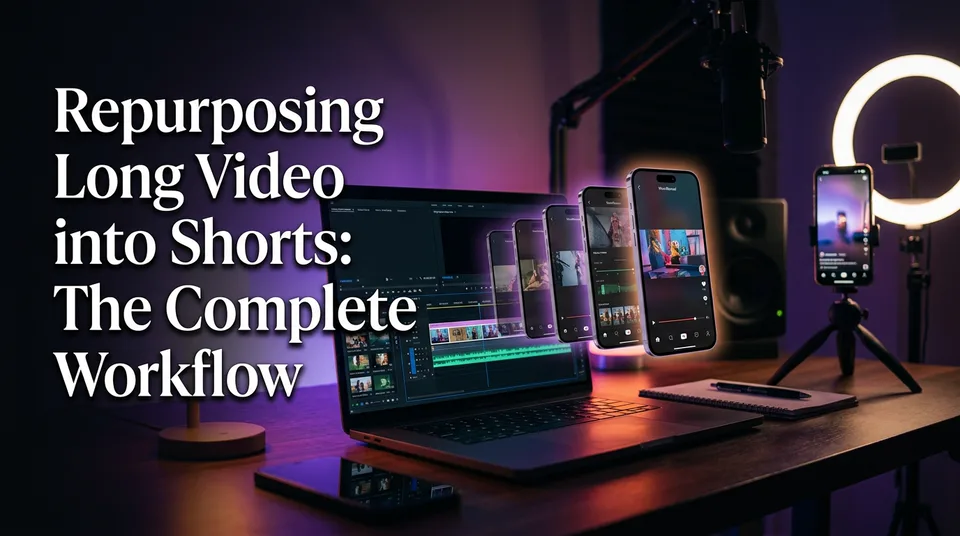
Repurposing Long Video into Shorts: The Complete Workflow
A five-step pipeline for turning podcasts, streams and YouTube uploads into Reels and Shorts that people watch to the end, with rights, originality and time budgets covered.
In this article
To repurpose long video into shorts, pick a source you have the rights to, find the strongest self-contained moments (by hand or with an AI clipper), reframe them to 9:16, add a hook and captions, then publish with a title, description and hashtags. That's five steps, and none of them is exotic.
The cutting is the easy part. What separates clips that get watched from clips that get scrolled past is everything around the cut: a hook in the first 3 seconds, enough context that a stranger understands the clip, and enough original value that the platform doesn't treat it as a re-upload.
This guide walks the full pipeline, with time budgets, free-versus-paid trade-offs, and the mistakes we see pages repeat.
Key takeaways
- The workflow is five steps: choose a source you can legally reuse, detect moments, reframe to 9:16, add a hook, context and captions, then publish with a post kit.
- Reuse only your own footage or footage you have written permission or a license for. Clipping other people's videos without permission is the fastest way to lose reach, and sometimes a channel.
- As a rule of thumb, a 60-minute source yields roughly 5-10 usable clips. That's an estimate, not a promise, and it depends on how dense the source is.
- The most common failure is a clip cut with no hook or context. Viewers leave in the first seconds, and retention tells the algorithm to stop showing it.
- Reused footage stays eligible when you add real value: commentary, story voiceover, a new edit, new context. Platform rules change, so check each one's current guidance.
- Free tools are fine for testing. Watermarks, length caps and credit limits usually decide when you start paying.
How to turn a long video into Shorts: the five-step workflow
The reliable way to turn a long video into Shorts is a fixed five-step pipeline: source, moments, reframe, hook and captions, publish. Every tool, from CapCut to an AI clipper, is just a faster or slower way through the same five steps.
The workflow at a glance
Skip a step and you can usually tell from the result. No rights check leads to takedowns. Weak moment selection leads to flat clips. Skipping the hook step leads to the retention cliff at second two.
| Step | What you do | What it protects |
|---|---|---|
| 1. Choose a source | Confirm you own it or hold permission or a license | Your account and monetization |
| 2. Detect moments | Mark self-contained, high-interest segments | Watch time and completion |
| 3. Reframe to 9:16 | Convert horizontal to 1080×1920 with the subject centered | Readability on phones |
| 4. Hook, context, captions | Rewrite the opening, add a headline and animated captions | Retention in the first 3 seconds |
| 5. Publish | Title, description, hashtags, schedule, per-platform check | Discovery and eligibility |
How long each step takes
Manual repurposing is slow mostly in steps 2 and 4. A common CapCut routine, scrubbing a long video, cutting a handful of segments and resizing them, runs about 30 minutes for a few rough clips, and that's before you polish hooks and captions.
AI clipping shortens detection and reframing. It doesn't remove the need for a human review. These are our rough estimates for a 60-minute source, not benchmarks:
| Step | Manual (e.g. CapCut) | With an AI clipper |
|---|---|---|
| Choose and check source | 5-10 minutes | 5-10 minutes |
| Detect moments | 30-60 minutes | A few minutes plus 10 minutes of review |
| Reframe to 9:16 | 20-40 minutes | Mostly automatic, quick check |
| Hook, context, captions | 30-60 minutes | 10-20 minutes of edits |
| Publish | 15-20 minutes | 10-15 minutes with a post kit |
The human stays in two places either way: deciding what's worth clipping, and approving the hook.
Step 1: Choose a source you can legally reuse
You can make Shorts from existing videos when the footage is yours, or when you hold written permission or a license to reuse it. Everything else is a rights problem, no matter how good the clip would look.
This step takes five minutes and prevents the worst outcomes. Do it before you open any editor.
Your own videos, streams and podcasts
Your own long video is the safest and usually the strongest source. You know the context, you hold the raw files, and you can add commentary because you were there.
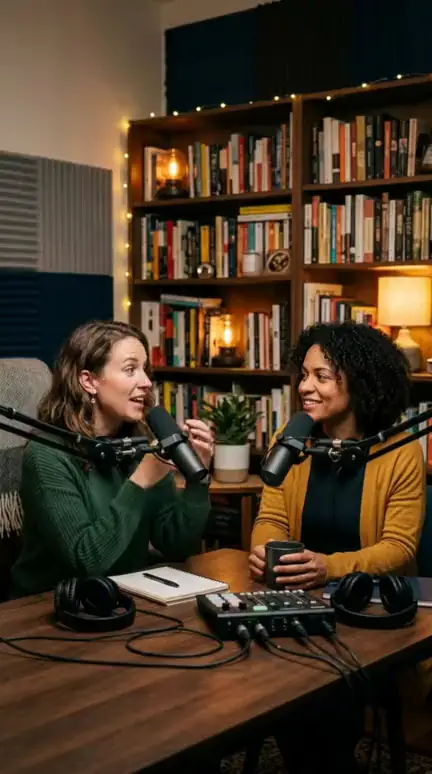
Good sources include YouTube uploads, webinars, live streams, interviews you recorded, podcast episodes (audio plus video) and tutorials. Podcast and stream clips work well because conversation naturally contains self-contained moments: a story, a hot take, a funny exchange, a surprising number.
One caveat. If a guest, co-host or clip includes third-party music or footage, your ownership of the file doesn't cover those parts. Strip or replace them before clipping.
Licensed, permissioned and creator-approved footage
Permission has to be explicit, preferably written. A DM saying "go ahead, credit me" counts as a record. A vague "I think they wouldn't mind" doesn't.
Check three things on any licensed footage:
- Does the license cover edits and re-publishing on social platforms, not just viewing?
- Does it cover monetized pages? Some licenses forbid commercial use.
- Is the permission tied to a specific platform or time period?
Keep a screenshot or a note per source. When an agency runs many pages, this folder is what saves you in a dispute.
When not to clip: other people's content without permission
Don't repost someone else's video as your Short because it's popular. It's not yours, and platforms increasingly spot it. Meta has said publicly that it reduces distribution for unoriginal content, and YouTube's monetization policies address reused content. Both can change, so read the current versions.
We've watched pages lose reach for weeks after reposting a single unoriginal clip, and recovery is slower than the offense. Content ID systems also match audio and video, so "I trimmed it" isn't a defense. If you want to work with someone else's footage, ask. Many creators say yes when you offer credit and a link.
Step 2: Find the best moments in a long video
To cut a long video into Shorts, you find segments that make sense alone, hold interest within seconds and end on a payoff or a clean beat. You can do that by scrubbing the timeline yourself or by letting an AI clipper propose candidates and then approving them.
As a rule of thumb, a 60-minute source yields roughly 5-10 usable clips. A tightly edited tutorial might give fewer. A rambling-but-rich podcast might give more. Treat the number as an estimate.
Manual method: scrubbing and marking timestamps
Manual works fine, especially for a source you already know. The trick is to avoid watching the whole thing at normal speed.
- Play the video at 1.5x or 2x with captions on, or read the auto-transcript.
- Whenever you hear a story, a strong opinion, a surprise or a laugh, note the timestamp.
- Rewind 10-15 seconds from each mark to find where the thought actually starts.
- Cut from the start of the thought to its clean ending, not to a time target.
- Rank your marks and keep the strongest 5-10.
In CapCut or a similar editor, you then split the timeline at those points, export each segment and resize. It's the "throw it into CapCut and scan for good moments" approach many creators describe, and it works. It's also where the 30 minutes disappears.
AI clipping: how it picks moments
An AI video clipper transcribes the audio, scores segments for things like speech energy, topic shifts, questions and answers, and visual change, then proposes start and end points. Good ones also check that a clip doesn't start or stop mid-sentence.
WowReveal's AI Clipper does this from a pasted link or an uploaded file, then carries the picks into captions, a headline, music, a cover and a 9:16 render. For a deeper look at the selection logic, see the related guide below.
Two honest limits. The AI doesn't know your audience, so it sometimes picks a technically lively moment that means nothing out of context. And it can't tell you whether you have the rights. Review every proposal like an editor, not a spectator.
What makes a moment clip-worthy
A clip-worthy moment answers a question the viewer would have asked, or delivers an emotion they didn't expect. The signals we trust:
- A complete mini-story. Setup, turn, payoff in one stretch.
- A strong claim or contrarian opinion stated plainly in one or two sentences.
- A visual change such as a reveal, a before and after, or a reaction.
- A concrete number, name or step that makes the clip feel useful.
- A quotable ending that gives the viewer a reason to replay or share.
What doesn't work: throat-clearing intros, "as I said earlier," anything that needs the preceding 10 minutes to make sense.
How long should each clip be
Clips should be as short as the idea allows, and not shorter. Most strong clips from talking sources land between roughly 20 and 60 seconds, with story clips running longer when retention holds.
Platform limits have grown. YouTube Shorts and Reels both accept longer videos than they used to, but those limits change, so check current figures in each platform's help center. The clip-length guide in the related list covers platform-specific ranges. A hard cap matters less than this rule: cut when the payoff lands, not when a timer says so.
Step 3: Reframe to 9:16 without losing the subject
Reframing means converting a 16:9 horizontal video into a 9:16 vertical frame (1080×1920) while keeping the speaker, the action or the key text visible. You can do it automatically, manually, or with a layout that uses the vertical space differently.
If you work on a phone, this is where Android and iOS apps earn their place. CapCut, the YouTube app's own Shorts editor and most AI clippers offer mobile reframing, so you can finish a batch without a laptop.
Auto-reframe vs manual crop
Auto-reframe tracks a face or moving subject and crops around it. It's fast, and it's good for single-speaker footage: talking heads, tutorials, interviews with one person in frame.
Manual cropping wins when the frame holds two people, on-screen text, a product or a sports play. You set keyframes yourself, which takes longer but stops the crop from hunting around.
A quick test: scrub through the reframed clip at normal speed. If the crop jitters, cuts off a hand or a forehead, or loses a second speaker mid-sentence, fix it manually.
Split-screen and blurred-background layouts
Not every horizontal clip should be cropped. Wide gameplay, group shots and screen recordings lose their meaning when you slice them to a narrow center column.
Two layouts solve that:
- Blurred background. Place the full horizontal video in the middle of the 9:16 frame and fill the rest with a blurred, enlarged copy. You keep everything, and you get space for a headline above and captions below.
- Split-screen. Put the speaker in the top half and the relevant visual, such as a slide, gameplay or B-roll, in the bottom half. It works well for podcasts with video and webinars.
Both give your headline and captions a stable home, which a pure crop doesn't.
Safe zones for captions and platform UI
Keep captions and your headline inside the area that stays clear of each app's interface. The bottom roughly 15-20% of the frame is crowded by the caption, username and buttons. The right edge holds the like and share column. The top has the search and status areas.
Safe-zone sizes differ by platform and shift when apps update. A practical default: keep text centered, away from the bottom fifth and the right edge, and test one clip on each platform before you batch the rest. WowReveal's templates place captions and headlines with this in mind, so you're not nudging boxes by hand.
Step 4: Add a hook, context and captions
A clip that has a hook, standalone context and readable captions will usually beat a better-cut clip that has none of them. This step is where most repurposed Shorts fail, because cutting feels like the work and everything after feels like decoration.
It isn't decoration. It's the difference between a segment of a long video and a short video.
Write the first 3 seconds
The first 3 seconds should promise something specific: a claim, a question, a result or a tension. Viewers decide inside that window, and retention data drives how far the clip travels.
Three ways to build a hook from existing footage:
- Lead with the payoff. Start on the strongest line, then play the setup. "He lost the whole deal in 10 seconds" works if the next clip shows it.
- Overlay a headline. One line of text, 6-10 words, that names the tension.
- Cut the warm-up. Remove "so," "okay," "um," and the first sentence of throat-clearing.
Don't write a hook the clip can't deliver. A bait hook raises early views and wrecks completion, and completion is what you're after.
Give the clip standalone context
A stranger should understand the clip without having seen the long video. Ask: who is talking, what is this about, why should I care?
Fixes are cheap. A one-line headline setting the topic, a short voiceover intro, or a caption naming the speaker and the situation. For story-driven sources, WowReveal can write a story-style narration and voice it with AI voiceover in 9 languages, which doubles as context for viewers who would otherwise land mid-conversation.
Cutting mid-thought without context is the most common repurposing failure we see. Viewers drop in the first seconds because they can't tell what they're watching.
Animated captions and readability
Most Shorts are watched with the sound low or off, so captions carry the clip. Animated captions, where the current word highlights as it's spoken, also keep eyes on the screen.
Readability rules we stick to:
- 3-5 words per line, 2 lines at most.
- High contrast: white text with a dark outline or a solid box.
- Large enough to read at arm's length on a phone.
- Check the auto-transcript for names, numbers and jargon. Auto-captions get those wrong constantly, and a wrong number in bold text is embarrassing.
For non-native English speakers, reading the captions aloud once is a fast sanity check.
Music, cover and brand kit
Add music only if it helps and doesn't fight the voice. Keep it low, and use tracks you're licensed to use on that platform. Library music on one app isn't always cleared on another.
A cover or thumbnail matters because it's what shows in the profile grid. A brand kit, meaning your fonts, colors, logo position and caption style saved once, keeps a hundred clips looking like one page. That consistency is worth more than a clever effect on any single clip.
Step 5: Publish and distribute the clips
Publishing a repurposed clip means adding a clear title, a useful description and a few relevant hashtags, then posting it natively to each platform. Native uploads outperform cross-posted links, and each platform has small rules of its own.
Post kit: title, description, hashtags
A post kit is the bundle of title, description and hashtags that goes with each clip. Writing it fresh every time is slow, so we template it.
- Title or first line: the hook in plain words, under about 70 characters where the platform shows a preview.
- Description: one or two lines of context, and a pointer to the full video if you own it.
- Hashtags: three to five relevant ones, not 30. Mix one broad and a few specific to the topic.
WowReveal's post kit generates titles, descriptions and hashtags per clip, which you then edit. Always edit. Generic text across 20 clips looks like spam to people and systems alike.
Posting the same clip on several platforms safely
You can post the same clip to Facebook Reels, YouTube Shorts, TikTok and Instagram Reels, but export without other apps' watermarks and adjust each post's text. A TikTok watermark on a Reel is a signal that you didn't make the video for that platform, and some platforms deprioritize it.
Safe practice:
- Keep a clean master export with no platform logos.
- Change the title, description and hashtags per platform.
- Check each platform's length and caption limits.
- Stagger posts by a few hours or a day so they don't collide in your analytics.
Monetization rules differ across platforms. Facebook content monetization, the YouTube Partner Program and TikTok programs each have their own eligibility and originality guidance, and each decides your eligibility, not you.
Batching and scheduling a clip series
A batch beats daily improvisation. One 60-minute source can feed a full week or two of posts, and you can drip the clips so the source stays a steady supply.
Meta Business Suite lets you schedule Reels for Facebook and Instagram. YouTube Studio schedules Shorts. Pick the times your audience is online, and keep a steady cadence you can maintain. Consistency over months beats a burst followed by silence.
Order the clips so the strongest goes out first, and label them as a series ("Part 1, Part 2") only when the clips genuinely connect.
How to keep reused clips original and monetization-safe
Reused clips stay original enough for monetization when you add real value: your own commentary, voiceover, edits or context, instead of re-uploading someone else's footage unchanged. Platforms judge the final video, not the effort behind it.
Rules change, so verify the current wording. For YouTube, see YouTube channel monetization policies, which cover reused content. For Facebook, read Meta's monetization and originality policies in Meta Business Suite and its Help Center.
What platforms treat as reused or unoriginal content
In broad terms, reused or unoriginal content is footage you didn't make, posted with little or no change. It also includes mass-produced, near-identical videos, and slideshows or compilations that add nothing new.
YouTube's policies say reused content must be significantly transformed, with commentary, criticism, education or similar added value. Meta has said similar things about originality for Facebook content monetization. Your own long video is, by definition, your original. Clipping it is repurposing, not reusing.
Still, a feed of 50 identical clips with no edits can look mass-produced, so variety matters.
Ways to add value: commentary, story voiceover, edits, new context
Value means a viewer gets something they couldn't get from the raw footage. Ways we've seen it work:
- Commentary. Explain, react to or critique the moment, in your own voice.
- Story voiceover. Narrate the clip as a short story with a setup and payoff, using AI voiceover or your own voice.
- Editing choices. Cut, reorder, add B-roll, zoom, highlight text and remove dead air.
- New context. Add a headline, facts, a timeline or a "why this matters" line.
- Translation. Voice or caption the clip in another language so a new audience can follow.
If you want a deeper approach to narration on reused footage, the related guide on adding commentary is a good next read. And none of this applies to footage you have no right to use. Value doesn't cancel the rights requirement.
Compilations and clips from multiple sources
A compilation combines several clips into one video. It can work when the sources are yours or licensed and you add structure, commentary and transitions. It's risky when it's a string of other people's clips with a title card.
Rule of thumb: a compilation should have a point of view. A "5 funniest moments from my last 5 streams" video does. A pile of strangers' videos doesn't. See the related guide on whether compilation Shorts are safe before you build one.
Free ways to repurpose long video into Shorts (and their limits)
You can repurpose long video into shorts for free using YouTube's own Shorts tools, CapCut's free tier and the free credits many AI clippers give you. Free works for testing and light use, but it comes with trade-offs you should know before you rely on it.
YouTube's own tools let you create Shorts from existing long videos in the app. See YouTube Help on creating Shorts for current options and limits, since they change.
What free tools usually limit
The limits are predictable. Check them before you build a workflow on a tool:
| Limit | What it looks like | Why it matters |
|---|---|---|
| Watermarks | A logo burned into the corner | Looks unprofessional, and can hurt reach on some platforms |
| Length caps | Source video limited to a set number of minutes | A 60-minute podcast may not fit |
| Export quality | 720p instead of 1080×1920 | Soft, blurry vertical video |
| Credit limits | A few free exports or minutes per month | Fine for testing, not for daily posting |
| Missing features | No captions, no reframing, no voiceover | You finish the job in another app |
"Free without watermark" exists, but read the export before you commit. A clean first clip doesn't mean clean 30th clip.
Free credits vs free forever
Free credits are a trial. Free forever is a limited product. Both are legitimate, but they serve different goals.
Free credits let you run real jobs on your real footage and judge quality. WowReveal starts you with free credits and no card, and refunds failed jobs automatically, so a failed render doesn't eat your balance. A free-forever tier usually means a hard ceiling on length, quality or volume.
Test the tool on your longest typical source, not a 2-minute demo. Demos hide the limits that hurt later.
When paying makes sense
Paying makes sense when time is your real cost. If you post daily, or run several pages, the 30-minutes-per-batch of manual cutting adds up fast.
A reasonable test: if a paid plan or credit pack saves you more hours per month than its price in your own hourly value, and the output holds up after review, it pays for itself. If you post twice a week from your own podcast, free tools may be plenty.
Monthly plans suit steady volume. One-time credit packs suit bursts, such as clearing a backlog of old episodes. Earnings from monetization are never guaranteed, so don't justify a tool by projected income. WowReveal's free Facebook earnings calculator gives estimates only, and Meta, YouTube and TikTok decide eligibility.
Repurposing mistakes that cost views
The mistakes that cost views are almost always in steps 4 and 5, not in the cutting. Most are fixable in a minute per clip once you know to look for them.
Clips with no hook or context
This is the top mistake. A clip cut from minute 34 starts mid-argument, the viewer has no idea what's going on, and they swipe in two seconds.
Fix: add a headline, lead with the payoff, or put a one-line voiceover in front. If you can't explain the clip's point in a sentence, it isn't a clip yet.
Cutting mid-sentence or mid-thought
A clip that starts on "...and that's why" or ends on half a word feels broken. Even viewers who can't say why will feel it.
Check the first and last second of every clip. Start on the first full word of a thought. End on the last word plus a beat of silence, or on a visual that closes the idea.
Ignoring rights and originality
Posting footage you don't have permission for, or re-uploading unchanged copies, risks strikes, demonetization and reduced reach. It isn't worth it for one viral clip.
Run the Step 1 check every time, even for a source you've used before. Permissions expire, and licenses differ per file.
Posting identical clips everywhere with no changes
Same clip, same caption, same hashtags, same minute, on four platforms. It's lazy, and it leaves performance on the table.
Change the first line of each post. Adjust the hashtags. Test one variant of the hook per platform. It takes five minutes and you learn which hook works where.
Skipping captions
No captions means you lose everyone watching on mute, which is a lot of people. It also hurts viewers who are deaf or hard of hearing, and people for whom English is a second language.
Captions are not optional in any workflow we run. Proofread them, too. A misheard name in 60-point type is the first thing commenters notice.
A repeatable repurposing workflow for pages and agencies
A repeatable workflow turns one long video into a week of content on a fixed schedule, with the same checklist for every clip. For a single page that saves hours. For an agency running many pages, it's the difference between order and chaos.
Weekly batch routine
Here's a routine that works for most pages posting daily:
- Monday: pick the week's source videos and run the rights check (15 minutes).
- Tuesday: run moment detection on every source, shortlist 5-10 clips each (30-60 minutes).
- Wednesday: reframe, add hooks, headlines and captions (60-90 minutes).
- Thursday: review, build post kits, schedule the full week.
- Friday: check last week's retention and note which hooks and clip types won.
Keep a standing reserve of two or three finished clips so a missed day doesn't break your cadence.
Naming and review checklist
Name every file the same way: page, source, clip number, date. For example, pageA_ep42_clip03_0612. It sounds boring until you have 300 files.
Before anything is scheduled, run a pre-publish check:
- [ ] Rights or permission confirmed and noted
- [ ] First 3 seconds have a hook
- [ ] Clip makes sense without the long video
- [ ] Starts and ends on a clean beat
- [ ] Captions proofread, inside safe zones
- [ ] 9:16 at 1080×1920, no foreign watermark
- [ ] Added value present (voiceover, commentary or edit)
- [ ] Title, description and hashtags written for this platform
The related monetization-safe checklist expands this into a full pre-publish list.
Automating with an API or AI agent
Once the routine is stable, you can automate parts of it. The repetitive steps, such as submitting a source, receiving clip candidates and rendering to 9:16, are good candidates for an API or an AI agent.
WowReveal offers an API and an MCP server for AI agents for this kind of pipeline. Keep a human in two places no matter how much you automate: the rights check and the final review. Automation multiplies whatever you feed it, good or bad, and a bad clip published 50 times is still bad.
For agencies, add a brand kit per client and a shared review checklist, so quality doesn't depend on who happens to be on shift.
Frequently asked questions
How do I convert a long form video into Shorts?
Follow five steps: confirm you have the rights, find self-contained moments, reframe to 9:16 (1080×1920), add a hook, context and captions, then publish with a title, description and hashtags. You can do this manually in an editor like CapCut or speed up detection and reframing with an AI clipper.
How can I convert a long video into short clips for free?
Use YouTube's own Shorts tools, CapCut's free tier or the free credits offered by AI clippers. Expect limits such as watermarks, length caps, lower export quality or a small credit balance. Test with your longest typical source before you build a routine around any free tool.
How do I make a long video into multiple short videos?
Mark every self-contained moment, then cut each one from the start of the thought to its clean ending. As a rule of thumb, a 60-minute source gives roughly 5-10 usable clips, though that's an estimate and depends on how dense the source is. Add a hook and captions to each clip so it works alone.
Can I make YouTube Shorts from existing videos?
Yes, if the footage is yours or you have permission or a license. YouTube's app includes tools for creating Shorts from long videos, and you can also export clips from other editors. Check YouTube Help for current options, since features and limits change.
Is it allowed to repurpose long video for monetization?
Repurposing your own content is generally fine, but platforms expect original, transformed work and can change their rules. Add commentary, voiceover, edits or context, and avoid re-uploading others' footage without permission. Meta, YouTube and TikTok each decide monetization eligibility, so read their current policies.
Can I repurpose long video into Shorts on Android?
Yes. The YouTube app, CapCut and several AI clipper web apps work on Android. Web-based tools run in a mobile browser, so you can paste a link or upload a file and finish a batch without a laptop.
How do I repurpose a podcast or stream into Shorts?
Use the video or audio-plus-visual version, find story moments, strong opinions or funny exchanges, and clip them from the start of a thought to a clean ending. Add captions, a headline and a split-screen or blurred-background layout. Clear any third-party music or footage first.
Where to go next
- How to Turn a YouTube Video into Shorts (Step by Step) — the step-by-step version for the most common source type.
- AI Video Clipper: How It Finds the Best Moments in Long Videos — a closer look at how AI picks moments in step 2.
- How Long Should a Clip Be for Shorts and Reels? — platform-specific length ranges for your cuts.
- AI Stream Clipper: How to Turn Podcasts and Streams into Shorts — source-specific guidance for podcast and stream clips.
- How to Add Commentary to Reused Video for Facebook Reels — a practical way to add value to reused footage.
- Can You Post AI or Repurposed Video on Facebook Without Breaking Originality Rules? — the originality and eligibility side in more depth.
- Monetization-Safe Shorts: A Pre-Publish Checklist for Every Reel and Short — the full check to run before every post.
- How to Post the Same Video on Reels, Shorts and TikTok Safely — cross-posting without the common penalties.
- What Is a Compilation Short, and Is It Safe to Post? — when combining clips helps and when it hurts.
- How to Write a Short-Video Script with AI (Hook, Body, Payoff) — build better hooks and voiceover for each clip.
- What Is a Brand Kit for Shorts? Definition, Contents and Setup — keep every clip looking like one page.
- Short-Video Workflow for Agencies: Managing Many Reels and Shorts Pages — scale this pipeline across many pages.
- Video API for Shorts: Automating Production with an API or AI Agent — automate the repetitive steps once your routine is stable.
- How to Make Shorts with AI: A Step-by-Step Workflow — the same idea applied to making Shorts from scratch.
- AI Short Video Creation for Reels and Shorts: The Complete Guide — the parent guide to the whole topic.
- Short Video Retention: How to Get Reels and Shorts Watched to the End
- AI-Generated Scenes for Shorts: A Step-by-Step Workflow Without Footage
- How to Budget for an AI Shorts Workflow: Cost per Short, Plans and Credits
Generate your reel right now
Paste a link to a long video — AI finds the best moments and turns them into ready Shorts with captions.


No link? Upload a file
- 30 free credits
- No card needed
- Voiceover in 9 languages
- Failed jobs refunded