How to Make a Reel Cover That Gets Taps (Cover Maker Guide)
A Reel cover takes three steps: pick a sharp frame, add a short headline, export at 1080x1920. Here's the routine, the safe zones and the mistakes to catch.
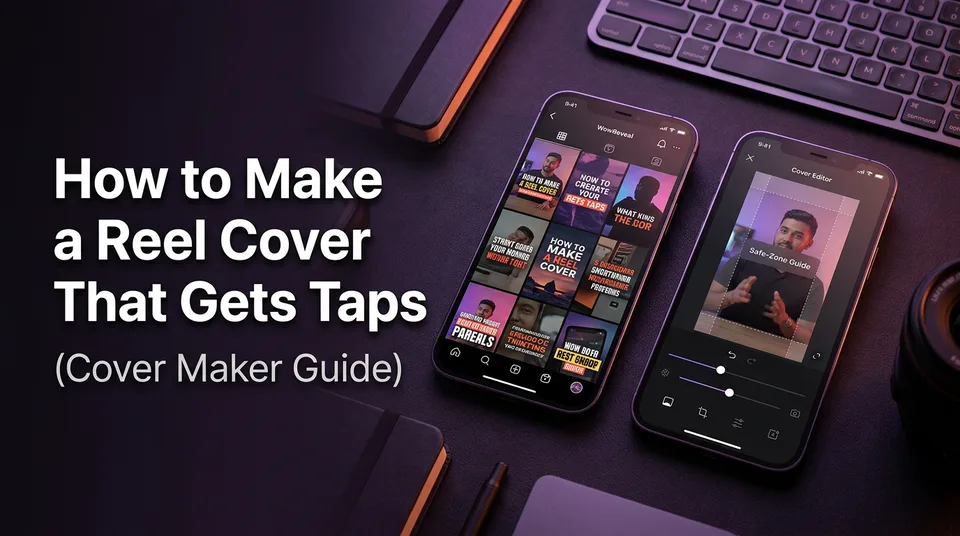
You make a Reel cover in three steps: pick a sharp, clear frame from the video, add a short headline of about 3-6 words inside the safe zone, and export it at 1080x1920 (9:16). A reels cover maker can do all three in one tool. Be realistic about the payoff, though: a cover influences taps from your grid and profile, but it never guarantees views.
What a Reel cover is and why it affects taps
A Reel cover, also called the thumbnail, is the still image that represents your video on the profile grid, in search and in some feed placements. Instagram calls it the cover; Facebook and YouTube mostly say thumbnail. Same job everywhere.
So what's a good one? It's readable at the size of a postage stamp. One subject, one idea, one short line of text. If a stranger can't tell what the video is about in half a second, the cover isn't working.
The grid matters more than people admit. Someone who lands on your profile from one Reel decides in seconds whether to scroll through the rest, and your covers are all they see. Instagram's creator hub and help center cover current Reels behavior, and the grid display has changed before, so check there if something looks off.
Step 1: Pick the right frame
The best cover frame comes from the video itself, because it matches what the viewer is promised. Scrub through the timeline and choose a moment, not the automatic first frame.
What makes a frame work
Look for a clear subject, ideally a face or a visible action, with good light. Skip anything mid-motion: blur looks like a mistake at thumbnail size. Skip black frames and transition frames too, which show up more than you'd expect when a clip starts with a fade.
Emotion and contrast beat polish. A surprised face, a finished result, a mid-reveal moment. We've watched creators spend an hour designing a cover when a better frame was sitting 2 seconds into the clip.
Frame or custom image?
Use a video frame by default. Use a custom image only when no frame is clean enough, or when the video is mostly text or screen recording. Custom covers can mismatch the footage, and a mismatch costs you trust, not just taps.
Step 2: Add a short headline
A good cover headline is 3-6 words, high contrast, and carries one idea. Longer lines get unreadable on a grid tile, and two ideas means neither lands.
Cover text formulas that work
The headline should add what the frame can't say. Don't repeat what's visible.
| Niche | Formula | Example |
|---|---|---|
| Transformations | Before-to-after promise | Messy to perfect |
| Animal rescue | Moment + stakes | He almost didn't make it |
| Talent shows | Reaction trigger | Judges weren't ready |
| Street food | Specific + craving | 2-minute crispy noodles |
| Tutorials | Outcome in plain words | Fix blurry photos fast |
Avoid clickbait the video doesn't deliver. Viewers who tap and leave in 2 seconds hurt your retention, which defeats the point of the tap.
Font, size and contrast
Use one bold sans-serif font, large enough to read on a phone held at arm's length. White text with a dark outline or a semi-transparent band works on almost any frame. Don't stack three colors on one line.
Keep text inside the safe zones
Keep all text and the main subject in the center of the 1080x1920 canvas, because the profile grid crops covers and the app overlays its own UI. The grid has shown covers at 3:4 and 4:5-style crops, and platform display rules change, so treat these numbers as a safe rule of thumb.
Our default: keep everything inside the central 1080x1350 area, with at least 60 px of side margin. That leaves roughly 285 px of top and bottom margin on a 1920 px canvas, which survives a 4:5 crop and covers the 3:4 crop with room to spare.
The classic mistake is a headline pushed to the bottom edge. It looks fine in the editor and vanishes on the grid. Preview your cover in a grid crop before you export.
Step 3: Export at the right size
Export the cover at 1080x1920 px, 9:16, as a PNG or JPG. PNG keeps text edges crisper; JPG is fine if the file is large and you need it smaller.
Don't export a square or a 16:9 image and hope the app fits it. Instagram, Facebook Reels, YouTube Shorts and TikTok all work from vertical video, so a native 9:16 file avoids surprise cropping. When you upload, pick the cover during the post step, then check the grid preview.
Keep every cover consistent with a brand kit
A brand kit makes your grid look like one page instead of 30 unrelated posts. It's a fixed font, 2-3 colors, a logo spot, and one headline position reused on every cover.
Consistency also speeds you up. If you post daily, or run several pages, deciding the font and layout once removes a decision from every upload. We'd rather see a plain, repeatable template than a fresh design each day.
Cover templates for Reels are useful for exactly this reason. Build one layout, swap the frame and headline, and export. The WowReveal cover maker follows the same logic: it builds the cover from your video's frames and applies your brand kit, so the grid stays uniform.
Reel cover maker options: free tools, apps and templates
The best free option is whichever fits your workflow, and you probably already have one. Instagram's own cover picker is free and fine for frame selection. Canva and Adobe Express offer Instagram Reel cover templates online, with free tiers that vary by feature. Both start from a blank 1080x1920 canvas.
Their limit is that they're design tools. You export a video frame, import it, design, export again. A tool that pulls the frame straight from the video, with safe-zone guides and a saved brand kit, cuts those steps. WowReveal offers free credits to start without a card, so you can compare it with your current method.
For a reels cover maker app, the same rule applies on mobile: pick one, check for a 9:16 canvas, and confirm it exports without a watermark. The same cover also works as a Facebook Reels thumbnail, since both are vertical.
Common cover mistakes to check before you post
Run this list before every post:
- The frame is sharp, lit and not mid-motion
- The headline is 3-6 words and readable at thumbnail size
- Text sits inside the center safe zone
- Font, colors and position match your brand kit
- The cover matches what the video actually delivers
- Export is 1080x1920, PNG or JPG
And the honest answer on getting more views: a cover helps people tap, nothing more. Views also come from the hook in the first 3 seconds, retention, pacing and posting consistency. A great cover on a weak video gets one tap and one quick exit.
Frequently asked questions
What size is an Instagram Reel cover?
Design it at 1080x1920 px (9:16). Keep key content in the center, since the profile grid crops covers. Display rules can change, so check Instagram's help center.
Can I use the same cover on Facebook Reels?
Usually yes. Both are vertical, so a 1080x1920 cover with centered text works on Facebook Reels too. Check the preview in the post screen, since crops can differ.
Does a better cover get more views?
It can raise taps from the grid and profile. It doesn't guarantee views. Your hook, retention and pacing decide whether those taps become watch time.
Where to go next
- What Is a Reel Cover (Thumbnail) and Why It Matters — Start here if you want the definition and background first.
- Hooks for Reels and Shorts: How to Win the First 3 Seconds — The cover earns the tap, the hook keeps people watching.
- Animated Captions for Reels: Do They Help Retention? — The next on-screen text decision, inside the video.
- How to Post Reels Daily on Multiple Pages Without Burning Out — Keep brand kits and covers consistent across many pages.
- What to Do After You Post a Reel to Boost Views — Practical steps once the Reel is live.
Turn any video into a ready-to-post Reel
Paste a link — WowReveal writes the story, voices it in 9 languages and adds captions, a headline and music. Start with free credits, no card.
Start free →