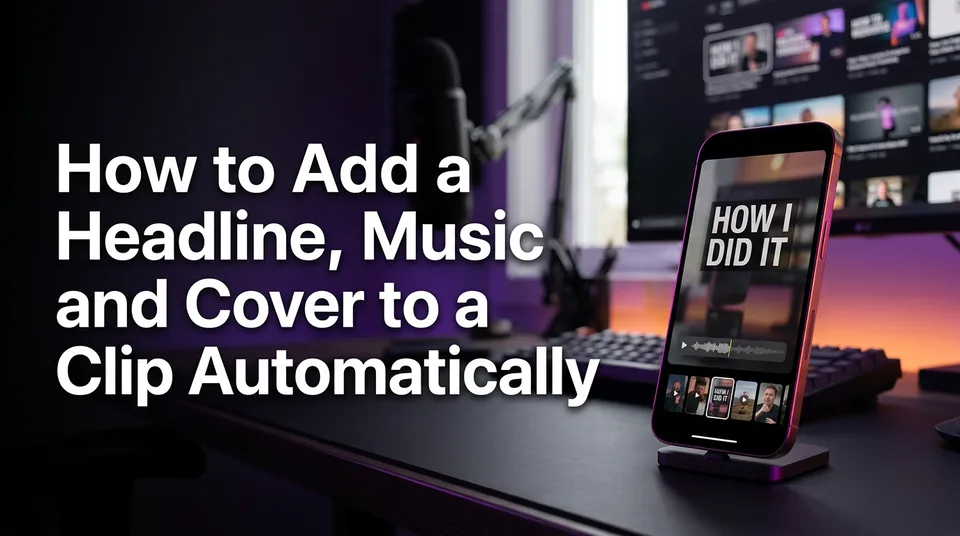
How to Add a Headline, Music and Cover to a Clip Automatically
You can add a headline, music and a cover to a clip in a single render. Here's the exact order, the settings that matter, and what to check before you post.
In this article
You can add a headline, background music and a cover to a clip in one step with an auto-packaging tool such as WowReveal: paste a link or upload the clip, pick your headline, music and cover options, and render a 9:16 video. Then check three things before posting: headline length, music volume and a readable cover frame.
That's the whole job. The rest of this page is about getting those three layers right, because the tool only does the typing and mixing. The judgment is still yours.
The short answer: three layers, one render
A finished short has three packaging layers on top of the raw clip: a burned-in headline, a music bed and a cover. An automatic render can apply all of them together, so you don't open an editor three times.
Each layer has a different job. The headline holds the viewer in the first seconds. The music adds energy without competing with speech. The cover is what people see in the feed or on your profile grid before they ever press play.
The order matters too. Write the headline first, because it dictates what the cover should show. Pick music second, because it has to sit under whatever audio the clip already has. Choose the cover last, from the finished frame.
Step 1: Add a headline that keeps the hook
A good Reels headline states the payoff or the question the clip answers, in plain words, and stays accurate to what happens on screen. It's the text hook of the short, so treat it like one.
How long should a Reels headline be?
Aim for about 4-8 words. "He fixed it in 10 minutes" works. A full sentence with a comma and a subordinate clause doesn't, because nobody reads that in two seconds while scrolling.
Curiosity or a specific outcome beats a vague label. "Wait for the last cut" is fine if the last cut delivers. And don't promise something the clip doesn't show. We've watched pages burn viewer trust fast with headlines that oversell, and retention drops right where the disappointment lands.
Where to place it so the interface does not cover it
Keep the headline inside the safe zone, the area of a 9:16 frame that the app interface doesn't cover. Stay away from the bottom, where the caption and username sit, and from the right edge, where the like, comment and share buttons live.
The upper-middle of the frame is the usual home. Leave the headline up for the first few seconds, then let it go. And make sure it doesn't collide with animated captions: if captions sit in the lower third, the headline goes high, and the two never overlap.
Safe-zone margins differ slightly between Facebook Reels, Instagram Reels, TikTok and YouTube Shorts, and the interfaces change. Preview on the platform you're posting to rather than trusting a single guide.
Step 2: Add music without drowning the speech
Music should sit clearly under speech or voiceover so every word stays intelligible. If a viewer has to strain to hear the speaker, the music is too loud, full stop.
Volume balance under speech or voiceover
Set the music low and test on a phone speaker, not headphones. Studio headphones flatter a mix and hide the problem. Dialogue-heavy clips need the bed lower still, while a clip with no speech can carry a fuller track.
Quick rule we use: if you can hum the music while the person is talking, it's too loud. Pull it down until it's felt more than heard. The same applies to an AI voiceover, where the narration has to stay the loudest element throughout.
Platform-safe music sources
Use licensed, royalty-free music, or tracks from the platform's own library. Don't drop in a copyrighted song from another source, because Content ID and similar systems can mute, block or demonetize the post.
Rules differ by platform and by account type, and they change. Business pages often get a narrower music library than personal profiles. Check Meta's help center for Facebook and Instagram music terms, and YouTube Help for the audio library and Shorts rules, before you publish.
Step 3: Pick a cover frame that reads in the feed
The best cover frame is a sharp, well-framed moment with a clear face or clear action, with the headline legible at thumbnail size. Blurry mid-motion frames and dark transitions make weak covers.
Auto-selection is a good first pass. It usually picks a clean frame, but it can't judge whether the moment is the most compelling one for your audience. So let it generate the cover, then replace it manually if a better frame exists.
Shrink the preview to roughly the size of a grid tile. If the headline turns into a smudge, shorten it or enlarge the text. The reel cover (thumbnail) is a small ad for the clip, and small ads fail when the words can't be read.
Automating all three in WowReveal
In WowReveal, one render adds the headline, music, cover and animated captions to produce a 9:16 video. You paste a link or upload a file, and the flow runs from there.
- Paste the video link or upload the file.
- Let the AI Clipper find the best moment, or use the clip you already trimmed.
- Choose the headline text, a music track and the cover option.
- Render the 9:16 video and open the preview.
Then edit anything that's off. Change the headline wording, swap the track or pick a different cover frame, and render again. Automation saves the repetitive work, but you shouldn't publish without looking. The post kit can then draft the title, description and hashtags for the post fields.
Final check before you post
Run this checklist on the preview, on a real phone, every time:
| Check | Pass condition |
|---|---|
| Headline length | About 4-8 words, readable in 2 seconds |
| Headline position | Inside the safe zone, clear of captions and buttons |
| Headline accuracy | Matches what the clip actually shows |
| Music volume | Clearly under speech, even on phone speakers |
| Music source | Royalty-free or platform library, rules checked |
| Cover frame | Sharp, clear face or action, text legible at grid size |
If one row fails, fix that layer and re-render. It takes a minute, and it's cheaper than a post that stalls in the first 3 seconds.
Frequently asked questions
How do I add a music overlay to a video?
Choose a licensed or platform-library track, place it under the original audio, and set its volume well below speech. An auto-packaging tool can do this in the same render as the headline and cover. Always check it on a phone speaker afterwards.
How long should a headline on a Reel be?
About 4-8 words. State the payoff or the question the clip answers, keep it accurate, and place it inside the safe zone so buttons and captions don't cover it.
Can I use any popular song as background music?
No. Use royalty-free or platform-provided tracks. Copyrighted songs from other sources can be muted or blocked, and the rules vary by platform and may change, so check the official help pages.
Where to go next
- From Clip to Finished 9:16 Short: A Step-by-Step Process — the full finishing workflow this packaging step belongs to.
- How to Add AI Voiceover to Reels, Step by Step — the voiceover layer your music needs to sit under.
- What Is a Reel Cover (Thumbnail) and Why It Matters — a quick definition if you're unsure what the cover does.
- How to Make a Reel Cover That Gets Taps (Cover Maker Guide) — goes deeper on designing the cover from step 3.
- Packaging a Reel: Cover, Title, Description and Hashtags Before You Post — what to add to the post fields once the video is rendered.
Generate your reel right now
Paste a link to a long video — AI finds the best moments and turns them into ready Shorts with captions.


No link? Upload a file
- 30 free credits
- No card needed
- Voiceover in 9 languages
- Failed jobs refunded