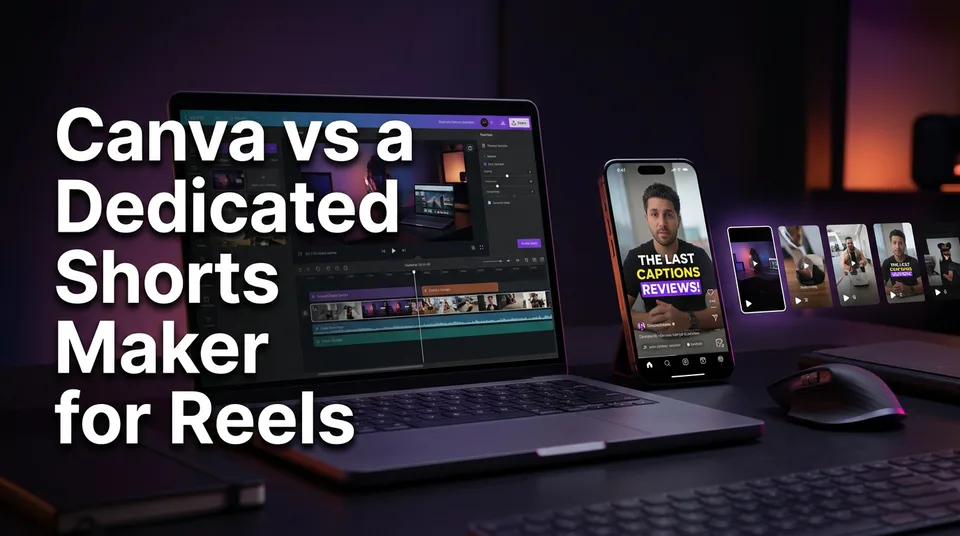
Canva vs a Dedicated AI Shorts Maker for Reels: Which One Fits Your Workflow?
Canva is great for designed, branded Reels. A dedicated AI shorts maker wins on volume. Here's how to choose by workflow, not by feature list.
In this article
Canva is good for hand-designed, branded Reels and short edits, while a dedicated AI shorts maker is better when you need to turn a link or a long video into finished vertical shorts (story, voiceover, captions, clips) at volume. That's the whole canva vs ai shorts maker question in one line. The rule: if you design each Reel yourself, use Canva; if you post several a day, use a pipeline.
Key takeaways
- Canva is a design suite first. It's excellent for branded Reels, covers, thumbnails and carousels, but you assemble each video scene by scene.
- A dedicated AI shorts maker such as WowReveal starts from a link or file and returns a 9:16 video with story, voice, captions and music already in place.
- For one polished Reel a week, Canva is usually the better pick. For three or more a day, manual assembly becomes the bottleneck.
- Neither tool guarantees monetization. Originality and added value decide that, and Meta, YouTube and TikTok make the call.
- The hybrid works well: let the AI maker produce the video, then use Canva for thumbnails, brand assets and carousels.
Canva vs a dedicated AI shorts maker at a glance
The table below compares them on what matters for daily posting. Where we don't know something, it says so, and Canva's features change often, so check its current plan page.
| Criterion | Canva | Dedicated AI shorts maker (WowReveal) |
|---|---|---|
| What it does | General design and video editor with Magic Studio AI tools | Turns a video into a finished vertical short end to end |
| Input | Your own clips, stills, stock, text prompts | A pasted link or an uploaded file |
| Output | Whatever you build, exported in 9:16 | Rendered 9:16 video with headline, captions, music, cover |
| Effort per Reel | Manual, scene by scene | Mostly review and approve |
| Captions | Auto-captions available, styled by you | Animated captions added in the pipeline |
| Voiceover | Text-to-speech or your own recording, as add-ons | Story written and voiced in 9 languages |
| Templates | Huge general design library | Niche templates built around a content format |
| Batch work | Possible, but manual | Built for repeat output |
| Pricing model | Free tier plus subscription (check current terms) | Free credits without a card, monthly plans, credit packs |
| Best for | Branded, designer-led Reels | Daily-posting pages, clip channels, agencies |
Is Canva good for making Reels?
Yes, Canva is good for making Reels when you want control over how each one looks, and less good when you need many Reels fast. It was built for designers and non-designers who care about layout, and that shows.
What Canva does well
Brand consistency is the real win. Fonts, colors, logos and layouts live in one place, and a team can edit the same file. If your page has a recognizable look, Canva keeps it intact.
It's also the strongest option here for covers, thumbnails, carousels and stills. Its YouTube Shorts maker page describes templates, AI features and editing tools, and that matches what we'd expect: plenty of design control in a familiar interface.
And it's easy. Most people already know how to drag a text box.
Where Canva slows you down for daily posting
The timeline is manual. You pick a template, replace clips, retime text, add music, fix captions, export. For one Reel that's fine. For three a day across two pages, it's the part of the job that eats your afternoon.
Canva also doesn't decide what the Reel should say or which 40 seconds of a long video are worth keeping. That thinking stays with you. We've watched page owners spend longer choosing fonts than writing a hook, which is a poor trade when retention is decided in the first 3 seconds.
Verdict: Canva wins for designed, branded, one-off Reels. It depends on your volume for everything else.
Does Canva make good AI videos?
Canva's AI video features are good for short, generated clips and quick edits, but they're not an end-to-end shorts pipeline. Canva Magic Studio bundles AI tools for generating media, writing text, resizing and removing backgrounds, and these speed up pieces of a manual workflow.
The gap is orchestration. A generated clip still needs a script, a voice, caption timing, a hook, a cover and a post caption, and you assemble those yourself. That's fine if you enjoy the craft or need a bespoke look.
It's a weaker fit for "turn this 20-minute video into six Reels". Canva is not an AI clipper, and treating it as one means scrubbing the footage yourself.
Feature sets move quickly, so test the current version with a real project before judging. The honest summary: Canva AI video helps you make pieces; a dedicated tool aims to hand you the finished piece.
What a dedicated AI shorts maker does differently
A dedicated AI shorts maker automates the whole chain from source video to finished 9:16 vertical video, instead of one step of it. WowReveal is our example because we build it, so weigh that accordingly.
Story and voiceover
You paste a link or upload a file. It writes a story around the footage and voices it with AI voiceover (text-to-speech) in 9 languages. For faceless pages, this is the heavy lift: scripting and recording are normally the slowest steps.
Multi-language matters if you run pages in several markets. The same source can become a Spanish, English or Portuguese version without hiring voice talent or re-editing.
Finding the best moments (AI Clipper)
The AI Clipper scans a long video and picks the strongest moments. Podcast episodes, talent shows, sports games and rescue footage all contain 20 dull minutes around 40 great seconds. Finding those by hand is the unglamorous part of clip channels.
You still review the picks. We'd never post an AI selection unseen, because a clip taken out of context can mislead.
Captions, cover and post kit
Animated captions, a headline, music and a cover come in the same pass, and a post kit supplies titles, descriptions and hashtags. That's the manual list people forget to count: captions, cover and post text often take as long as the edit.
Remember that the source has to be yours or used with permission. A pipeline doesn't make someone else's video original.
Comparison by criteria: speed, automation, captions, voiceover and templates
Across the five criteria that matter for daily output, the AI shorts maker wins four and Canva wins on design control. The estimates below are ours, not measured benchmarks, and your results will vary.
Speed per finished Reel
Canva: expect roughly 30 to 60 minutes for a narrated Reel with captions, because you build it scene by scene. An AI maker: link or file to a rendered 9:16 video in minutes, then a short review. Those are rough estimates, not promises.
Winner: the AI maker, clearly, once you post more than one a day.
Automation and batch output
Canva automates pieces: Magic tools, auto-captions, resizing between formats. An AI maker automates script, voice, clip selection, captions, cover and render end to end. For a faceless page posting three a day, that's the difference between one sitting and a second job.
Winner: the AI maker.
Captions
Both offer captions. Canva gives you design freedom over style, which is nice for brand-led accounts, but you correct and time them yourself. An AI maker adds word-by-word animated captions automatically, and your effort drops to proofreading names and slang.
Winner: depends. Brand look favors Canva; speed favors the AI maker.
Voiceover and languages
Canva treats voice as an add-on: text-to-speech or your own recording, placed manually. The AI maker writes the story and voices it as part of the same run, in 9 languages. Canva's own language coverage for voices isn't something we'll guess at here.
Winner: the AI maker.
Templates
Canva has an enormous general template library, and nothing here touches it for layouts, social graphics and print. An AI maker's niche templates are narrower, built around a format such as talent shows, animal rescue, satisfying restorations or podcast clips.
Winner: Canva for variety of design; the AI maker for ready-made content formats.
Canva vs CapCut vs an AI shorts maker for Shorts
For Shorts, CapCut sits between the two: a manual editor like Canva, but built around video, with auto-captions and templates aimed at short-form. It's the natural pick if you want frame-level editing and trend-style effects on your own footage.
So the three tools split like this. Canva for design and brand. CapCut for hands-on video editing. An AI shorts maker for generating finished shorts from a source at volume.
If someone asks for the best tool for Reels creation, our answer is annoying but true: it depends on whether your bottleneck is design, editing or output. A manual editor (either one) costs you time per video. A pipeline costs you control per video.
We'd choose CapCut over Canva for editing your own footage with precision, and an AI maker over both for batch output. For a designed carousel or cover, Canva wins.
Which workflow suits which creator
Match the tool to your posting pattern, because the feature list matters less than how many Reels you ship per week.
- Branded, designer-style Reels: Canva. You want exact fonts, layouts and a consistent look across a handful of posts.
- Faceless story page posting 3 a day: an AI shorts maker. Story, voice, captions and render in one pass is the only way the math works.
- Clip channels: an AI maker with a clipper. Cutting long videos by hand doesn't scale.
- Agencies running many pages: an AI maker for volume, Canva for each client's brand assets.
- Beginners: Canva if you want to learn editing; an AI maker if you want output while you learn what your audience watches.
Free plans, watermarks and what to check before paying
Many tools offer a free tier, but free usually means limits, so check the watermark, export quality and credit rules before building a routine around one. This applies whether you search for a free AI shorts maker without a watermark or a free YouTube Shorts maker with AI.
Canva has a free tier plus paid subscription features. An AI maker like WowReveal starts with free credits and no card, then sells monthly plans and one-time credit packs. Those are different pricing models: subscription access versus pay-per-output.
Before paying, test three things. Does the export carry a watermark? What resolution and length can you export? And what happens when a job fails?
On that last one, WowReveal refunds failed jobs automatically. Ask any credit-based tool the same question. Run one real video through the free tier, not a demo clip, and judge the result on a phone screen.
Monetization and platform rules: can Canva videos earn?
Yes, videos made in Canva can be monetized, because platforms judge the content, not the editor. What matters is whether the video is original and adds value, not which app exported it.
For YouTube, the YouTube Partner Program overview lists the eligibility requirements, and they change, so read the current version. Facebook content monetization and TikTok programs have their own rules too, and Meta, YouTube and TikTok decide eligibility, not any tool.
The risk isn't Canva. It's what people do with it: dropping the same template with swapped text into dozens of near-identical videos, or leaning entirely on stock and reused clips. The same applies to AI makers. Repetitive, mass-produced content with no real contribution can be demonetized or lose reach, on any tool.
Two habits protect you. Use footage you own or have permission to use, and add something of your own: commentary, a story angle, a clear edit. And where a platform asks you to label realistic AI-generated or altered content, label it.
How to choose: a short decision guide
Pick by your volume and your bottleneck, and use both tools if both bottlenecks exist. Five if-then rules cover most cases.
- If you post one or two branded Reels a week and care how each looks, use Canva.
- If you post 3 or more a day, use an AI shorts maker and review the output.
- If you start from long videos, use one with a clipper.
- If you need the same story in several languages, favor AI voiceover with multi-language support.
- If you need hands-on frame edits on your own footage, add CapCut.
And the hybrid: let the AI maker produce the vertical video, then use Canva for thumbnails, covers, carousels and brand assets. You keep the look, and you stop hand-building every Reel.
Frequently asked questions
Is Canva good for making Reels?
Yes, for designed, branded Reels where you control every scene. It's slower for daily posting because you assemble each video manually, so pages posting several Reels a day often pair it with an AI shorts maker.
Can Canva videos be monetized on YouTube?
Yes. YouTube judges the content, not the editing app. Your channel must meet the YouTube Partner Program requirements, which can change, and the video must be original and add value rather than reused or mass-produced.
What is the best AI for creating shorts?
It depends on the job. For a finished 9:16 short from a link or long video, with story, voiceover, captions and clips, a dedicated AI shorts maker fits. For custom design, Canva fits. For manual editing, CapCut fits.
Is there a free AI shorts maker without a watermark?
Some tools offer free tiers, but watermarks and export limits vary and change. Test one real video on the free plan, check for a watermark and the export resolution, and confirm how failed jobs are handled before you pay.
Where to go next
- AI Short Video Creation for Reels and Shorts: The Complete Guide — the pillar guide for the whole topic, a good starting point.
- How to Make Shorts with AI: A Step-by-Step Workflow — the workflow you'd follow if you pick the dedicated tool.
- Faceless Shorts with AI: How to Make Them Step by Step — the next step for story-driven pages posting daily.
- How Long Should a Clip Be for Shorts and Reels? — set the right clip length before you start cutting.
- Animated Captions for Shorts and Reels: Styles, Settings and Mistakes to Avoid — goes deeper on the captions criterion.
- How to Make Reels in Another Language with AI Voiceover — covers voiceover and languages in detail.
- Free AI Shorts Maker: What You Actually Get Without a Card — answers the free tier and watermark questions.
- Faceless Shorts Generator: Free vs Paid (What You Really Get) — a deeper free versus paid breakdown.
- AI Shorts Maker Pricing: Credits, Plans and Credit Packs Explained — compare costs before you pay.
- Can ChatGPT Make an AI Video? What It Can and Can't Do — another general tool versus dedicated tool comparison.
Generate your reel right now
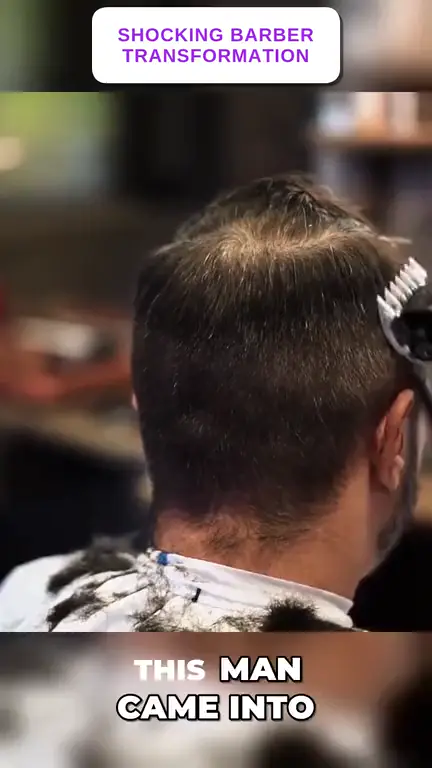
Paste a link to any video — WowReveal writes the story, voices it and adds captions, a headline and music. Ready for Reels, Shorts and TikTok.

No link? Upload a file
- 30 free credits
- No card needed
- Voiceover in 9 languages
- Failed jobs refunded