Animated Captions for Shorts and Reels: Styles, Settings and Mistakes to Avoid
Animated captions are word-synced subtitles for sound-off viewers. Here's which style to pick, the settings that keep them readable, and the mistakes that quietly hurt your Shorts.
In this article
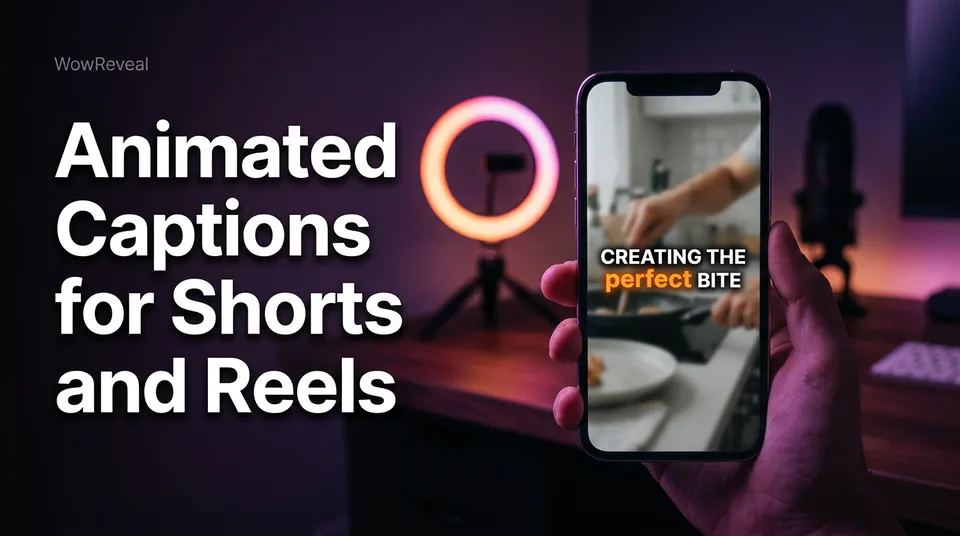
Animated captions are on-screen subtitles that appear and highlight in time with the speech, often word by word, so viewers can follow a Short or Reel with the sound off. They work best at 2-4 words per screen, and only after you've checked the auto-transcript for mistakes.
That's the whole idea. The rest of this guide covers the part most tool pages skip: which style fits which kind of video, the exact settings that keep text readable on a phone, and the errors that make a page look careless.
Key takeaways
- Animated captions are speech-synced text that highlights word by word or line by line, usually generated by auto-transcription.
- Use about 2-4 words per screen, one short line (two at most), shown only while those words are spoken.
- Word-by-word highlight suits fast talking and voiceover. Karaoke style suits slower, longer sentences. Static suits silent footage with occasional text.
- Keep captions in the middle-lower safe zone, away from the buttons, title and username overlays on Facebook Reels, YouTube Shorts, TikTok and Instagram Reels.
- Always read the auto-transcript before export. Names, numbers, slang and accents are where it fails.
What Are Animated Captions?
Animated captions are text generated from the speech in your video, displayed in sync with it, and styled so the current word or phrase stands out. The animation can be a color change on the active word, a pop or bounce as each word lands, or a line that fills in as it's spoken.
Most are made by auto-captions: software transcribes the audio (auto-transcription), assigns a timestamp to each word, then renders the text into the video itself. Because the text is baked into the picture of your 9:16 vertical video, it looks identical on every platform.
Captions vs subtitles vs on-screen text
These three get mixed up constantly, and the difference matters for how you build the video.
- Subtitles assume the viewer can hear and just need the words translated or transcribed.
- Captions assume the viewer may not hear, so they can also include non-speech information such as music or sound effects. The W3C Web Accessibility Initiative draws this line in its guidance on media captions.
- On-screen text is anything else you place on the frame: a headline, a label, a "part 2" tag. It isn't tied to speech timing.
In short-form, people say "captions" and "subtitles" interchangeably, and that's fine. What you shouldn't do is treat on-screen text and captions as one layer. They compete for the same space, and we'll come back to that.
Why Captions Matter for Sound-Off Mobile Viewers
Captions matter because a large share of people scroll vertical video with the sound off or low, and a silent video with no text gives them nothing to hold onto. If the first line of speech is unreadable, the viewer has no reason to wait for it.
They do three jobs. They let a sound-off viewer follow the story. They reinforce the hook, since the first words on screen are often the first thing read. And they help accessibility: deaf and hard-of-hearing viewers, and people watching in a second language, can follow along.
That last group is bigger than creators assume. Plenty of your audience reads English better than they hear it.
What the evidence does and does not show
Here's the honest position: captions are a sensible default, but nobody can promise they'll raise your watch time. Results depend on your niche, your hook, your pacing and your audience.
We've seen pages add captions and change nothing else, and the effect was invisible. We've seen others fix a messy caption style and watch the early drop-off shrink. Treat captions as one lever inside a wider retention system, not a trick. Our separate article on whether animated captions help retention goes deeper on the evidence.
Caption Styles Compared: Word-by-Word, Karaoke and Static
There are three caption styles worth using for short videos: word-by-word highlight, karaoke style and static captions. Each trades energy for readability differently.
| Style | What the viewer sees | Words on screen | Best for | Watch out for |
|---|---|---|---|---|
| Word-by-word highlight | One short chunk, active word highlighted or popping | 2-4 | Fast speech, story voiceover | Overdone motion tires the eye |
| Karaoke style | Full line visible, active word changes color | 5-8 per line | Slower, longer sentences | Too many words per line |
| Static | Text appears, holds, then swaps | 2-6 | Silent footage, occasional lines | Can feel flat on talking heads |
Word-by-word highlight
Word-by-word is the style most people mean by "animated captions." A few words show at once, and the word being spoken changes color, scales up or pops in.
It's the best match for quick speech because your eye follows the highlight and doesn't have to scan a line. The risk is motion overload. If every word bounces, spins and glows, viewers read the effect instead of the sentence.
Karaoke style
Karaoke-style captions keep a whole line on screen and highlight the active word as it's spoken, like lyrics on a screen.
This works when the speaker takes their time, such as a calm explainer or an interview clip. The line stays still, so reading feels stable. But it breaks down fast if the line runs past about 6-8 words or wraps to three lines.
Static captions
Static captions appear in chunks with no word-level animation. They're the quiet option.
Use them when you want text without drama: a satisfying restoration with a few narrated beats, or footage where speech is rare. Static is also the safest choice when your transcription timing is imperfect, because small sync errors are less obvious.
Which Caption Style Fits Your Content?
Match the style to how the video talks, not to what looks trendy. Fast, continuous speech wants word-by-word; slow, deliberate speech can take karaoke; mostly silent footage wants static.
- Story voiceover (an AI voiceover narrating over clips): word-by-word. The pace is steady and fast, and highlighted words keep the eye moving with the narration.
- Talking head: word-by-word at 2-3 words, positioned below the face. Static looks flat, and long karaoke lines cover the speaker.
- Podcast clip: karaoke style or word-by-word with 3-4 words. Two speakers means you may want a color per speaker.
- Silent footage with text beats: static. Animating words that nobody is saying feels odd.
So what's the best caption for YouTube Shorts? The question has two meanings. For on-screen captions, word-by-word highlight is the safest default for speech-driven Shorts. For the text under the video, a short title that states the payoff works better than a vague teaser. Neither is a magic formula, and the same logic applies on Reels and TikTok.
Settings That Make Captions Readable on a Phone
Readable captions come down to five settings: words per screen, font size, contrast, position and highlight color. Get these right and almost any style works. Get them wrong and the best animation fails.
- Words per screen: 2-4 words, one short line, two lines maximum. Each chunk should be on screen only while it's being spoken.
- Font: a heavy sans-serif, bold weight. Thin or script fonts disappear on a small screen.
- Size: large enough to read at arm's length without squinting. If you have to lean in, it's too small.
- Contrast: white or yellow text with a dark outline or soft shadow. Check it over your brightest and darkest frames, not only the first one.
- Highlight color: one accent color for the active word. Pick something clearly different from the base text and from the background.
Use one font and one color scheme across the whole page. A saved brand kit with your caption font and colors keeps every video consistent without redoing it each time.
Safe zones for Reels, Shorts and TikTok
Safe zones are the areas of a 9:16 frame that the app's own interface doesn't cover. Every platform overlays something: like, comment and share buttons down the right edge, plus the username, caption text and sound label near the bottom.
Our rule of thumb: keep captions in the middle-lower part of the frame, above the bottom overlay and clear of the right-hand button column. Don't push them to the very bottom, and don't put them on a face.
The exact overlay changes between Facebook Reels, YouTube Shorts, TikTok and Instagram Reels, and apps update their layouts. Before you post a new format, upload a test video as a draft or private post and check where the interface lands.
How to Add Animated Captions to Shorts Step by Step
To caption a Short, transcribe the audio, fix the text, choose a style, and render the captions into the video at 1080×1920. The same file then works on every platform.
- Finish your edit first: cuts, voiceover, music. Captions follow the final timing.
- Generate the auto-transcript.
- Correct every error (see the next section).
- Pick a style and apply your saved font, size and colors.
- Preview on a phone with the sound off, watching for overlap with the interface.
- Export, then post.
Auto-captions in a generator or app
An animated subtitles generator or captions app does steps 2 to 4 in one pass: it transcribes, styles and syncs. Search results are full of them, and most use similar AI captions underneath.
If your workflow already generates the video, captions can come with it. WowReveal writes the story, voices it with AI voiceover in 9 languages, and adds animated captions, a headline, music and a cover when it renders the 9:16 file. Because the captions come from the same script as the voiceover, there's less to fix.
Doing it manually in an editor
Manual captioning in a video editor gives you full control and takes much longer. You type or import text, time every chunk and style it.
Importing an SRT (a subtitle file) saves typing, but that's a different thing from burned-in animation. As YouTube Help explains, uploaded caption files and auto-captions are viewer-controlled tracks that people can turn on or off. Animated captions are part of the picture, so they always show.
Free vs paid options
Free animated caption generators exist, and for occasional posting they can be enough. The catch is the limits: watermarks, caps on video length, limited exports or a reduced number of styles.
If you post daily, these limits show up fast. A watermark on a monetized page is a bigger cost than a subscription, and a length cap can force you to split videos. Test a free tool on one real video before you commit to it. Some all-in-one generators start with free credits and no card, which lets you check the output first.
Check Transcription Accuracy Before You Export
Auto-transcription is good but never perfect, so read every line before you export. A wrong word in large animated text is far more visible than a typo in a description.
Errors cluster in predictable places. Run this checklist every time:
- Proper names: people, brands, places. Auto-transcription guesses at spelling.
- Numbers and currency: "15" versus "50" is an easy mishear and an expensive one.
- Slang and idioms: the model often swaps them for similar-sounding real words.
- Accents: a strong accent raises the error rate, in any language.
- Mixed languages: if you switch between languages mid-sentence, check each switch.
- Line breaks: make sure a chunk doesn't split a name or phrase awkwardly.
For non-native English creators, there's a useful habit. Don't just read the text; play the video once with sound on and follow the words. Your ear catches mismatches your eye misses. And if you're captioning in a language you don't speak well, have a native speaker skim it before the page's first big post.
Common Caption Mistakes (and Fixes)
The most common caption mistake is putting too much text on screen at once, but the other errors are just as easy to spot once you know them. Most are fixed in the style settings, not the edit.
Too much text per screen
When a caption holds 8 or 10 words, the viewer reads instead of watching, and the highlighted word loses meaning because the eye is already elsewhere. Cut each chunk to 2-4 words, or one short line.
If your tool groups by time instead of word count, lower the limit manually. A sentence can run across several chunks. That's the point.
Other mistakes worth checking:
- Covered faces: captions placed over the speaker's mouth or eyes. Move them lower.
- UI overlap: text hidden by the buttons or the platform's own caption. Check safe zones.
- Low contrast: light text on a bright background. Add an outline or shadow.
- Excess animation: bounces, shakes and glows on every word. Pick one subtle effect.
- Caption and voiceover mismatch: the text says something slightly different from the audio, often after you rewrote the script. Re-transcribe.
- Duplicated headline: the headline and the first caption saying the same thing at the same moment.
Captions, Headline and Voiceover Working Together
Captions, headline and voiceover should each carry a different job, not repeat each other. The voiceover tells the story, the captions mirror it word for word, and the headline frames the video.
The headline sits at the top and gives the promise: what's about to happen. The captions sit lower and follow the speech. If both say the same sentence, one of them is wasted space.
A practical split: headline for the hook, shown for the first few seconds, then gone. Captions run the whole video. The cover, the still image people see in a grid, uses the same font and colors so the page looks like one brand.
For Instagram Reels the same approach holds. Instagram also has its own caption sticker and text tools, but burned-in animated captions keep the look identical across apps, which matters when you cross-post. Just don't forget to recheck the overlay area for each platform before you publish.
How to Test Whether Your Captions Help
Test captions by changing one thing at a time on similar videos and reading the retention graph, not by trusting one result. A single video is noise.
On YouTube, the retention graph in YouTube Analytics shows where viewers leave, second by second. On Facebook, Meta Business Suite shows retention for Reels. Look at the first 3 seconds and at any steep drops mid-video.
A simple test:
- Pick two or three videos of the same type, length and posting time.
- Post one with your old caption style and one with the new style.
- Compare early retention and average watch time after a similar period.
- Repeat with a few more videos before you decide.
Be careful about conclusions. Hooks, topics and the algorithm's mood all shift results. If the new style is more readable, keep it even when the numbers look flat, because readability helps viewers who can't hear the video. And if it does move the graph, you'll know it wasn't luck.
Frequently asked questions
What are animated captions?
Animated captions are on-screen subtitles that appear and highlight in sync with speech, often word by word, so people can follow a Short or Reel with the sound off. They're usually generated by auto-transcription and burned into the video.
How many words should animated captions show at once?
About 2-4 words per screen, on one short line with two lines as a maximum. Show each chunk only while it's being spoken, so the highlight matches what the viewer hears.
How do you caption your Shorts?
Finish your edit, generate an auto-transcript, correct every error, apply a readable style and export at 9:16. You can do this in a captions app, an editor, or an all-in-one generator that adds captions when it renders the video.
Are there free animated caption generators?
Yes, but they usually come with limits such as watermarks, length caps or restricted exports. Test one on a real video before relying on it, especially if you post daily.
Do I need an SRT file for animated captions?
No. An SRT is a subtitle file that platforms show as a toggleable track, while animated captions are rendered into the video itself. You can use an SRT as the text source, but the animation comes from the caption tool.
Where to go next
- Short Video Retention: How to Get Reels and Shorts Watched to the End — the wider retention system that captions sit inside.
- Animated Captions for Reels: Do They Help Retention? — evidence and nuance on whether captions actually change watch time.
- Hooks for Reels and Shorts: How to Win the First 3 Seconds — the first caption line is the first thing viewers read.
- How to Make Shorts with AI: A Step-by-Step Workflow — shows where captioning fits in a full AI workflow.
- How to Find Where Viewers Drop Off in Your Shorts (and What to Fix) — read the retention graph to test caption changes.
- Podcast Clips for Reels and Shorts: How to Pick, Format and Post Them — talking-head clips are where caption style matters most.
- What Is a Brand Kit for Shorts? Definition, Contents and Setup — save caption fonts and colors so every video matches.
- How to Post the Same Video on Reels, Shorts and TikTok Safely — what to check when one captioned video goes to several apps.
- Packaging a Reel: Cover, Title, Description and Hashtags Before You Post
- How to Label AI-Generated Content on Reels, Shorts and TikTok
- How to Batch Create a Week of Shorts and Reels in One Sitting
- How to Write Viral Reel Captions That Keep People Watching
Generate your reel right now
Paste a link to any video — WowReveal writes the story, voices it and adds captions, a headline and music. Ready for Reels, Shorts and TikTok.

No link? Upload a file
- 30 free credits
- No card needed
- Voiceover in 9 languages
- Failed jobs refunded