How to Add Animated Captions to a Reel, Step by Step
Four steps, two routes, one common mistake. Here's how to get animated captions onto a Reel without losing an hour, and how to stop the transcript embarrassing you.
In this article
You add animated captions to a Reel in four steps: auto-transcribe the speech, style the text (font, highlight, position), check the timing and fix the transcript, then export. You can do all four with in-app tools like Instagram auto captions and the Facebook Reels editor, or with a dedicated generator that burns the captions into the video file.
The 4 steps at a glance
Animated captions are just a transcript, styled and timed to the voice, so the whole job fits into four moves.
- Transcribe. Let auto-transcription turn the speech into text.
- Style. Pick the font, the word-by-word highlight, the size and the position.
- Check. Read the transcript against the audio and fix the timing.
- Export. Render a 9:16 file and post it.
For a 30 to 60 second Reel, expect roughly 5 to 15 minutes the first time and less once your style is saved. That's a rough estimate, not a promise. Most of the variation comes from step 3.
In-app tools or a dedicated caption generator?
Use in-app tools when you post to one platform and want speed; use a dedicated generator when you post the same video to several platforms and want one consistent look. That's the whole decision rule.
| In-app captions | Dedicated generator | |
|---|---|---|
| Cost | Free | Free credits or paid |
| Animation | Limited presets | Word-by-word highlight, custom styles |
| Output | Platform-tied | Burned-in, works everywhere |
| Best for | One platform, quick posts | Reels, Shorts, TikTok, Facebook |
When in-app captions are enough
If you film a talking clip on your phone and post it only to Instagram Reels, the caption sticker is fine. It's free, it's fast, and the Instagram Edits app adds more styling options on top. On Facebook, the Reels editor has its own auto-caption option, so the same logic applies there. Menu names and placement change often, so check the Instagram Help Center if a button isn't where you expect it.
When a generator is worth it
If you post daily across Instagram Reels, Facebook Reels, YouTube Shorts and TikTok, a generator saves real time. You style once, reuse that style, and every platform shows the same captions. Tools like WowReveal's animated captions also handle faceless videos, where the audio is an AI voiceover and the captions come straight from the script.
Step 1: Transcribe the audio automatically
Auto-transcription reads the speech in your video and produces timed text in a minute or two. In Instagram, open the Reels editor, tap the sticker tray and pick the captions sticker. In the Facebook Reels editor, look for the auto-captions option in the text tools.
If you add a sound from the library or reuse saved audio, in-app captions often can't transcribe it, because they work from the speech recorded in your clip. In that case, type the text yourself or use a generator that transcribes the uploaded file.
Pick the right language before you run it. A wrong setting turns the whole transcript into nonsense.
Step 2: Style the captions so they animate
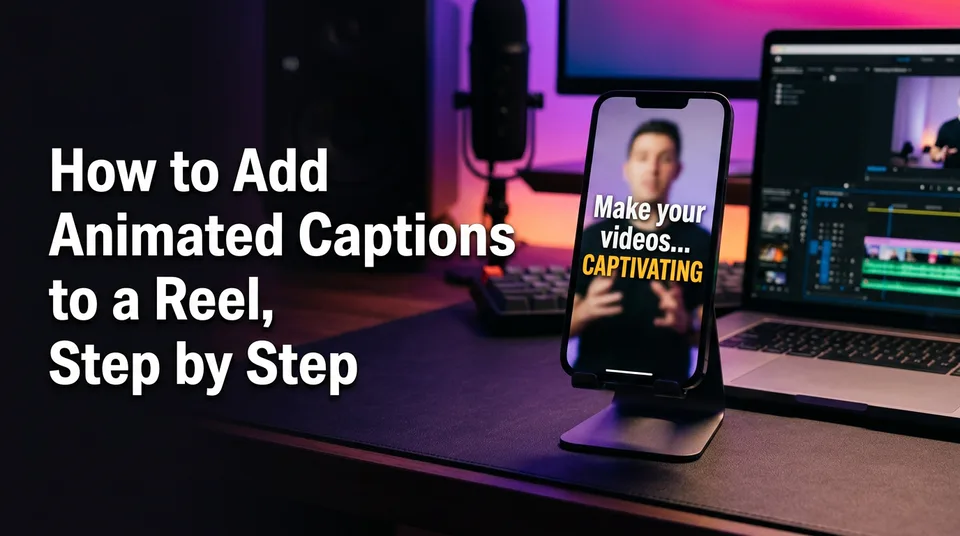
Captions look animated when the active word changes color or size as it's spoken. That's the word-by-word highlight, and it's the effect people mean when they search for animated text on Reels.
In-app, you usually choose from a handful of preset styles. In a generator, you control more:
- Font: bold, sans-serif, readable at phone size.
- Highlight: one accent color on the current word, not three.
- Size: big enough to read without squinting.
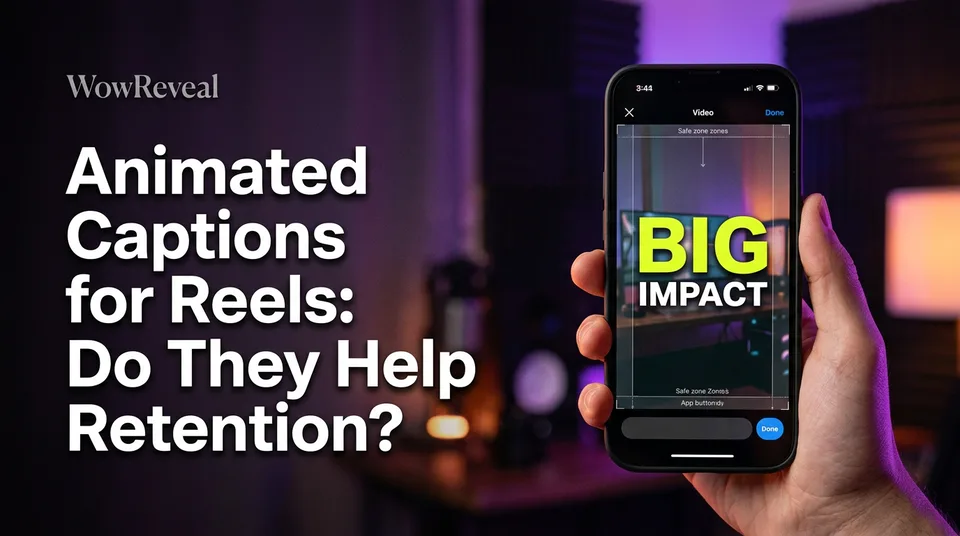
- Position: inside the 9:16 safe zone, above the bottom UI and clear of the right-side buttons.
- Length: one or two lines, short phrases.
Three lines of small text on a 1080×1920 frame is a subtitle file, not a caption style.
Step 3: Review the transcript and check the timing
Skipping the transcript review is the most common mistake, and the errors show on screen in large letters. We've seen auto-transcripts mangle names, turn "15" into "50", and replace slang with a real but absurd word. Accented speech makes it worse, and many creators in this audience speak English as a second language.
Timing matters too. If a highlight lands a beat late, the animation feels broken even when every word is right.
To fix errors in Instagram's own captions, open the caption editor while you're making the Reel. After posting, you can manage captions from the post or from your settings, according to the Help Center. Burned-in captions can't be edited after posting at all, so fix everything before you export.
A 60-second review checklist
Play the Reel once with sound and check these, in order:
- Names: people, places, brands, channel names.
- Numbers: prices, dates, scores, counts.
- Slang and idioms: anything the model might "correct" into a different word.
- Accents: any sentence you had to listen to twice.
- Line breaks: no one-word orphans, no mid-phrase splits.
- Timing: highlight matches the spoken word at the start, middle and end.
Step 4: Export and post
Export at 9:16 and make sure the caption type matches your plan. Burned-in captions are part of the video pixels, so every platform shows them identically and viewers can't switch them off. Instagram's caption sticker and closed captions are separate text that the viewer can toggle. Each has a place, and the difference matters if you repost the same file to YouTube Shorts or TikTok.
You can also add captions to an Instagram Story with the same caption sticker, and Facebook Reels follow the same four steps in their editor. Platform rules and menus may change, so verify in the app.
If you want a burned-in look on every platform, export from the generator and upload that file as is. Don't stack the platform's own captions on top, or you'll get doubled text.
Common mistakes to avoid
Most caption problems come from rushing step 3 or ignoring where the app puts its own buttons.
- Skipped review. The wrong name or number sits on screen for the whole Reel.
- Covered by the UI. Captions placed too low disappear behind the username, description and buttons. Keep them in the safe zone.
- Too much text. Whole sentences at once make people read instead of watch. Show short phrases.
- Low contrast. White text on a bright scene is unreadable. Use an outline or shadow, and test on a phone in daylight.
- Doubled captions. Burned-in plus the platform's own captions, both visible.
Animated captions are a clarity tool. We wouldn't promise that they change retention or earnings by themselves, because a weak hook still loses the viewer in the first seconds. They do make the video easier to follow with the sound off, which is how plenty of people watch.
Frequently asked questions
Can I add captions to a Reel after posting it?
Instagram's own captions can be managed from the post or from your settings, but burned-in animated captions can't be changed once the video is uploaded. If you spot an error in a burned-in version, fix it in the source and post a new export.
Do I need a separate tool for animated subtitles?
Not always. In-app caption stickers are enough for quick, single-platform posts. A dedicated generator is worth it when you want word-by-word animation, saved styles and the same look on Reels, Shorts, TikTok and Facebook.
Why are my auto captions wrong?
Auto-transcription struggles with names, numbers, slang, background noise and strong accents. Always review the transcript before exporting, and choose the correct spoken language first.
Where to go next
- Burned-In Captions vs Closed Captions: What's the Difference? — Helps you choose the export type before you commit to a caption route.
- How to Add AI Voiceover to Reels, Step by Step — For faceless Reels, the voiceover audio is what gets transcribed.
- From Clip to Finished 9:16 Short: A Step-by-Step Process — Shows where captions fit in the full vertical-short workflow.
- Animated Captions for Shorts and Reels: Styles, Settings and Mistakes to Avoid — Goes deeper on styles and settings once the steps are done.
- Packaging a Reel: Cover, Title, Description and Hashtags Before You Post — The next step after captions is packaging the post.
Generate your reel right now
Paste a link to any video — WowReveal writes the story, voices it and adds captions, a headline and music. Ready for Reels, Shorts and TikTok.

No link? Upload a file
- 30 free credits
- No card needed
- Voiceover in 9 languages
- Failed jobs refunded