Burned-In Captions vs Closed Captions: What's the Difference?
Burned-in captions are pixels you control. Closed captions are a track the viewer controls. Here's the plain-language difference and what to pick for Reels, Shorts and TikTok.
In this article
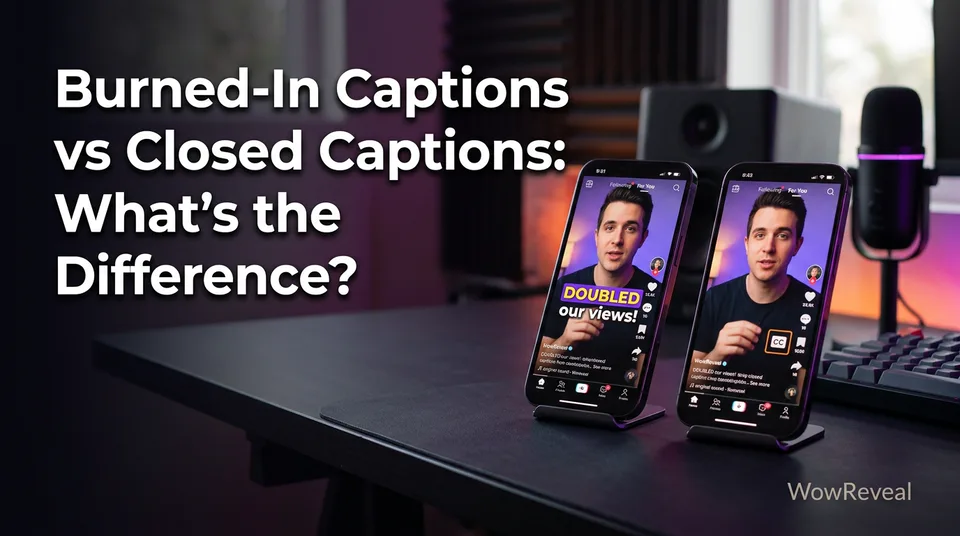
Burned-in captions, also called open captions or hardcoded subtitles, are text permanently rendered into the video image, so nobody can turn them off. Closed captions are a separate text track that the viewer can switch on or off. In short-form video, that one difference decides who controls how your words look: you, or the viewer's player.
Key points
- Burned-in (open) captions are part of the picture. No file, no toggle.
- Closed captions are a sidecar track (SRT, VTT or platform-generated) that the viewer controls.
- Burned-in gives you full styling; closed gives viewers control, plus better accessibility and translation.
- For Reels, Shorts and TikTok, burning in is usually the default. There are exceptions.
What are burned-in captions?
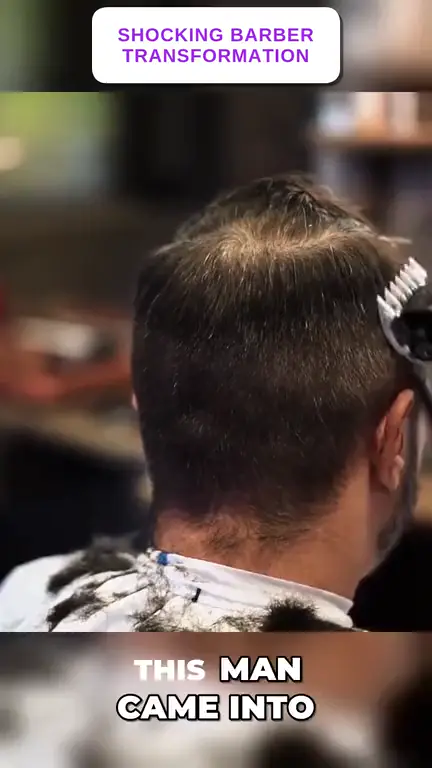
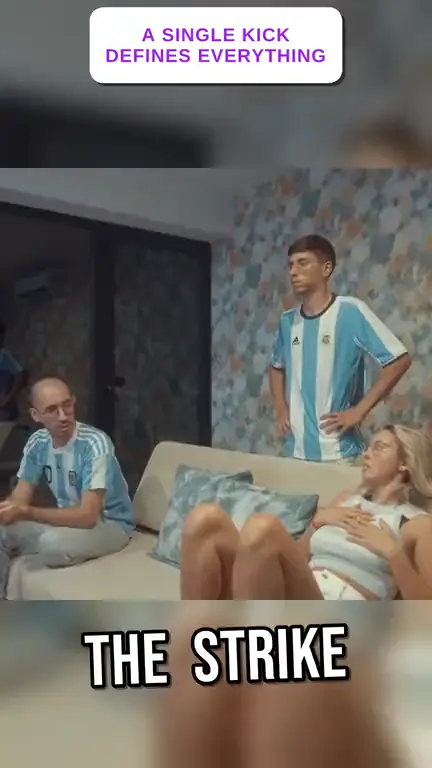
Burned-in captions are words baked into the video frames at export, the same way a logo or a color filter is. There's no separate file. The text travels inside the video and looks identical on every device.
Editors call this "hardcoded subtitles." Accessibility people call it "open captions," because the text is always open to view. It's the same idea as an open-caption screening in a movie theater, where the words show on screen for everyone in the room.
What are closed captions?
Closed captions are a separate text track that a player overlays on the video only when the viewer turns it on. They're "closed" because the text stays hidden until someone opens it.
The track usually lives in a sidecar file such as SRT or VTT, or the platform generates it for you. YouTube Help explains how to upload these files. Because the player draws the text, the viewer can often change its size and font.
Open vs closed captions: side-by-side differences
The core difference is control: open captions are always visible and fixed, while closed captions can be toggled, restyled and swapped by the viewer.
| Burned-in (open) | Closed | |
|---|---|---|
| Viewer can turn off | No | Yes |
| Styling | Full: font, color, animation | Limited by the player |
| File | None, exported with the video | SRT, VTT or platform track |
| Translation | Re-render the video per language | Add another track |
| Machine-readable | No, it's pixels | Yes |
That gives you the three main caption types: open captions, closed captions, and subtitles.
Where subtitles and SDH fit in
Subtitles assume the viewer can hear the audio but needs the speech translated or written out. Captions go further and add sound cues like [door slams] and speaker labels. SDH (subtitles for the deaf and hard of hearing) is the subtitle version that includes those cues. Streaming services like Netflix label tracks differently, so read the label rather than guessing.
Trade-offs: styling control vs viewer control
Burning in buys you total visual control, and it costs you the viewer's. You choose the font, the colors, the animation and which word lights up as it's spoken. That's why animated captions are a burned-in technique.
But burned-in text can't be resized, translated or turned off. It isn't machine-readable either, so screen readers can't use it. The W3C Web Accessibility Initiative treats captions as an accessibility requirement, and a real track serves that need far better than pixels do.
We've watched creators re-export a whole video to fix one typo in burned-in text. With a caption file, that's a 10-second edit.
Which should you use on Reels, Shorts and TikTok?
Short-form vertical video usually burns in, because it autoplays muted and styled captions help people keep watching. Many younger viewers also scroll with sound off and keep captions on by habit, so readable text on screen is the safer default.
TikTok, Instagram Reels and Facebook Reels offer auto-captions, but those are platform-controlled toggles. The viewer can disable them, the style isn't yours, and accuracy varies. Features change, so check each app.
The hybrid approach works best where it's allowed: burn in styled captions, and on YouTube Shorts also upload an SRT so the closed track covers accessibility and other languages. Pick closed captions alone for long-form, web video and multi-language delivery. WowReveal adds animated burned-in captions automatically when it renders a 9:16 video, which saves the manual timing work.
Keep captions inside the safe zone
Burned-in text can't move, so the platform's interface can cover it. The bottom of the 1080×1920 frame usually holds the username and description, and the right edge holds the buttons.
Keep captions in the middle band, away from both. Then preview the video in each app before posting, because layouts change.
Where to go next
- Animated Captions for Shorts and Reels: Styles, Settings and Mistakes to Avoid — the next step once you've decided to burn captions in.
- Animated Captions for Reels: Do They Help Retention? — why burned-in text helps keep sound-off viewers watching.
- YouTube Shorts Size and Aspect Ratio: 1080x1920 Explained — the frame you're placing captions in.
- How to Post the Same Video on Reels, Shorts and TikTok Safely — burned-in text has to survive each platform's UI overlays.
- Short Video Retention: How to Get Reels and Shorts Watched to the End — where captions fit in the wider retention system.
- How to Write Viral Reel Captions That Keep People Watching — a different kind of caption: the post text under your video.
- How to Add Animated Captions to a Reel, Step by Step
- Estimated Earnings vs Paid Earnings on Facebook: What the Difference Means
Generate your reel right now
Paste a link to any video — WowReveal writes the story, voices it and adds captions, a headline and music. Ready for Reels, Shorts and TikTok.

No link? Upload a file
- 30 free credits
- No card needed
- Voiceover in 9 languages
- Failed jobs refunded