How to Label AI-Generated Content on Reels, Shorts and TikTok
Realistic AI video needs a label; captions and voiceover usually don't. Here's where the toggle sits on TikTok, YouTube Shorts and Meta, and what skipping it risks.
In this article
Yes, you generally have to disclose AI-generated video when it shows realistic people, places or events that didn't happen, and each platform has its own toggle: TikTok's "AI-generated content", YouTube's "altered or synthetic content" and Meta's "AI info". Routine AI help such as captions, AI voiceover or editing usually doesn't need a label.
That's the short version of how to label AI-generated content on Reels, Shorts and TikTok. The details differ by platform, and platforms change their wording often, so treat every rule below as a snapshot and re-check the official help centers before you build a workflow around it.
Key takeaways
- Label content that looks real but isn't: lifelike people, places or events that never happened, or real people shown doing or saying things they didn't.
- AI captions, AI voiceover, script help and ordinary editing are generally not the trigger, but check each platform's current wording.
- Three separate switches exist: the TikTok toggle under More options, the YouTube Studio altered or synthetic content question, and Meta's AI info disclosure.
- Cross-posting means setting the label again on each platform. It doesn't carry over.
- Skipping a required label can mean removal, a platform-added label, limited reach or lost monetization eligibility. Outcomes vary and nobody can promise you either way.
Do you have to disclose AI-generated video?
You have to disclose AI video when a viewer could reasonably mistake it for real footage of something that didn't happen. That's the common thread across TikTok, YouTube and Meta, even though each one words it differently and draws the line in slightly different places.
The practical test is simple. Would a normal viewer, scrolling fast with the sound on, believe this was filmed? If yes, label it.
What counts as realistic synthetic content
Realistic synthetic content is anything generated or altered with AI that passes as a real person, place or event. The classic examples are a photoreal "news" scene that never occurred, a real person's face or voice made to say something they never said, or a fake rescue, disaster or celebrity moment.
AI-generated scenes sit here too. If you create footage in a tool like AI Studio and the result looks like a camera shot, treat it as label territory. A clearly cartoonish or stylized look is a different case, and the platforms generally treat it differently.
What usually does not need a label
Ordinary AI assistance usually doesn't need a label. That covers generated captions, script drafting, AI voiceover reading a story over real or stock footage, color correction, noise cleanup, and automatic cutting.
YouTube's own help page says creators don't need to disclose things like productivity assistance, and that clearly unrealistic or animated content is outside the requirement. Read the current version at YouTube Help on disclosing altered or synthetic content. The exact wording can change.
One caveat we repeat to every page owner: a synthetic voice imitating a real, identifiable person is not "just voiceover". That moves toward label, or toward not posting at all.
How to label AI-generated content on TikTok
On TikTok you label AI content with the "AI-generated content" toggle that appears under More options on the post screen, before you publish. Yes, you can post AI-generated videos on TikTok. The expectation is that realistic AI content gets labeled, and content that misleads people in harmful ways can still break the Community Guidelines, label or not.
The official explanation lives in TikTok Support on AI-generated content. Check it now and then, because TikTok has updated this area more than once.
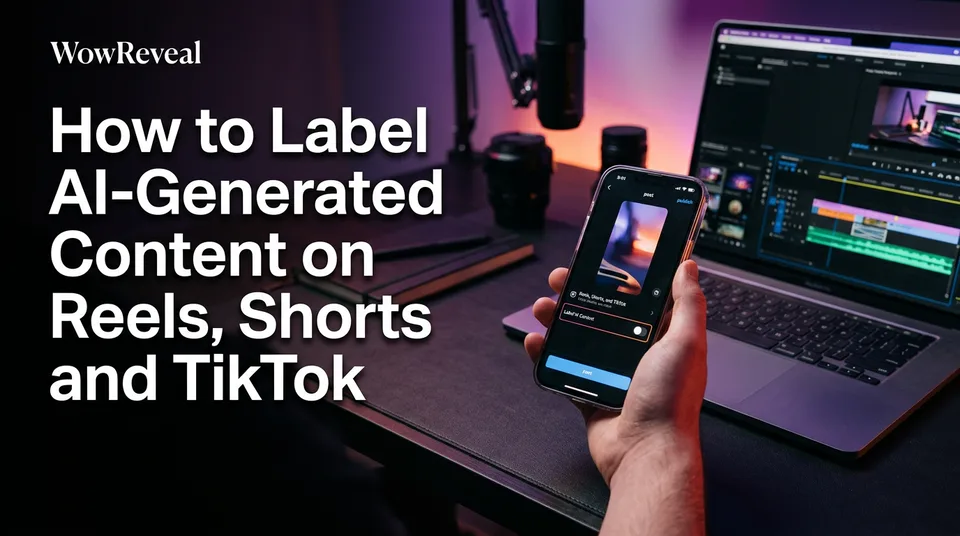
Step-by-step: More options, then AI-generated content
Adding the label takes about five seconds if you remember it before you post. Here's the flow:
- Finish your video and reach the post screen where you write the caption.
- Tap More options.
- Turn on AI-generated content.
- Tap Post.
A line in the caption such as "made with AI" or a hashtag is an optional extra. It doesn't replace the toggle. And the toggle is a post-level setting, so set it every time rather than assuming it sticks.
What about TikTok LIVE? We wouldn't assume the same toggle exists there. Look in the LIVE setup screen and the help center for current options, and if you can't find a disclosure control, don't present generated visuals as a real live event.
Automatic labels and Content Credentials
TikTok can also add a label itself. It reads C2PA Content Credentials, a metadata standard that some AI tools attach to generated images and videos, and labels content that carries those signals.
So you can end up with an AI label you never touched. Metadata travels with the file, which means a clip exported from a tool that embeds credentials may arrive on TikTok already flagged. That's not a punishment, it's detection.
Creator labeled as AI-generated: what it means
When you turn the toggle on, viewers typically see wording along the lines of "Creator labeled as AI-generated". When the platform detects it, the wording tends to differ, something like "AI-generated" or a note that the video contains AI-generated media.
The difference matters. A creator-applied label says you were upfront. A platform-applied one says the system found signals first. The exact text varies by app version and region, so screenshot your own post to confirm what viewers see.
How to disclose AI on YouTube Shorts
On YouTube Shorts you disclose through the altered or synthetic content question in the upload details, answered in YouTube Studio or the YouTube app. It's a yes or no question about whether your content is realistic and altered or synthetic, and it applies to Shorts the same as long videos.
Where the altered or synthetic content setting is in upload details
In YouTube Studio, start an upload and stay in the Details step. Scroll past title, description and audience settings to the section about altered content, and expand "Show more" if you don't see it. Answer yes if the video contains realistic altered or synthetic material.
In the app, the question appears in the same upload details flow. If you can't find it, the menu may have moved, so search the help page for the current location. Layout changes are normal here.
You can usually change the answer later in Studio. Do it as soon as you notice a mistake.
When YouTube asks for it and what viewers see
YouTube asks for disclosure when content could be mistaken for real: a realistic person saying something they didn't, altered footage of a real event, or a generated realistic scene. Fantasy, clearly animated looks and productivity uses are generally outside it.
When you answer yes, YouTube can show a label in the expanded description, and for Shorts, on the player itself. It may add one on its own if you don't disclose and it detects the material. Sensitive topics like health, news and elections can get more prominent labels.
Is AI disclosure required for monetization? Not as a separate monetization checkbox. But failing a required disclosure can bring enforcement, and separately, the YouTube Partner Program has its own rules on inauthentic and mass-produced content. A label doesn't fix a video that was never original enough to earn.
How Meta labels AI content on Reels
Meta labels AI content on Facebook Reels and Instagram Reels with an "AI info" label, and it expects you to disclose when you share photorealistic video or realistic-sounding audio that was created or altered with AI. It applies on both Facebook Reels and Instagram Reels, though the exact controls can differ by app and account type.
Adding the disclosure when you post
When you post, look for the AI disclosure option in the advanced or additional settings of the composer. Turn it on for realistic AI video or audio, then publish. Menu names shift between the Facebook app, Instagram and Meta Business Suite, so check what your own composer shows.
If you schedule posts in Meta Business Suite, confirm the option is available in that flow before you batch a week of content. Don't assume a scheduled post inherits a setting you used in the app.
Labels Meta can add automatically
Meta can apply "AI info" without your input. It looks at industry signals such as C2PA and IPTC metadata that AI tools embed, and at self-disclosure. If your tool tags its output, expect a label.
Meta's policies also cover who can monetize. For pages in Facebook content monetization, originality rules matter more than any AI label. Check the current Meta help center for both.
Which label does my workflow need? Common AI Reels and Shorts setups
Most monetized pages use one of four AI workflows, and only some of them point to a label. Here's how they usually sort, as a starting point, not a legal ruling:
| Workflow | Typical answer | Why |
|---|---|---|
| AI voiceover on real or stock footage | Usually no label | Voice reads a story; visuals are real. Label if it imitates a real person's voice. |
| AI story with stock footage or AI captions | Usually no label | AI helps with writing and editing; nothing realistic is fabricated. |
| AI images used as visuals | Check the rule | Stylized art is generally fine. Photoreal "real events" call for a label. |
| AI-generated video scenes | Label | Realistic generated people, places or events are the core trigger. |
| AI Clipper cuts of existing video | Usually no label | AI picks real moments, but you still need the rights to the source. |
The AI Clipper row trips people up. Picking the best moments from footage you're allowed to use isn't synthetic content. But it doesn't make unauthorized footage safe either. That's an originality and permission question, separate from AI labeling.
Our own rule of thumb at WowReveal: if the AI wrote it, voiced it or cut it, you're generally fine. If the AI invented what the camera supposedly saw, label it.
Why a clip got an AI label you did not add, and what you can do
A label you didn't add usually means the platform found AI signals, typically metadata like C2PA Content Credentials or output from an AI tool. Some creators also report that heavily edited clips get flagged more often. That's anecdotal. TikTok doesn't publish a precise trigger list.
If the label is accurate, leave it. If you think it's wrong, the honest options are limited:
- Check whether any part of the video really is AI-generated or AI-altered. Often one generated clip or image is the cause.
- Look in the post's settings or the help center for a way to contest or edit the label.
- Use in-app feedback or an appeal option if the platform offers one.
- Don't strip metadata or re-encode files to dodge detection. That's evasion, and it can turn a label into a bigger problem.
So can you avoid or remove an AI label on TikTok? Only legitimately: by not using synthetic realistic material, or by getting a wrong label corrected through the platform. Tricks to hide it are the wrong move.
What happens if you skip a required label
Skipping a required label can lead to removal, a platform-applied label, limited reach or lost monetization eligibility, and repeat violations can put the account at risk. Platforms decide case by case, and we can't promise any specific outcome.
We've watched pages treat disclosure as optional because nothing happened the first few times. Then the same page gets a label forced onto a post, or a warning, and the audience's trust drops with it. For a page that earns through Facebook content monetization, the YouTube Partner Program or TikTok programs, the downside outweighs a five-second toggle.
It also affects viewers, which is the real point. Fabricated realistic footage with no label is how people get misled, and that's what these rules exist to stop.
A one-minute AI disclosure routine before you publish
A short routine beats remembering rules, especially when you post daily or run many pages. Run this before each upload:
- Ask the realism question. Could a viewer mistake any shot, face or voice for real? If yes, a label is needed.
- Check the source. Did any AI tool generate footage or images? Look for C2PA metadata or tool notes.
- Set the toggle on each platform. TikTok: More options, then AI-generated content. YouTube: the altered or synthetic content question. Meta: the AI disclosure option.
- Add a short caption note if it helps, such as "AI-generated scene". It's optional but friendly.
- Re-check cross-posts. The same video on three platforms means three separate settings.
- Screenshot the final post so you can see what viewers see.
For agencies, put step 3 in the shared checklist and assign one person per page to confirm it. A forgotten toggle across 10 pages is a bigger mess than one missed post.
Rules also move. Re-read the help centers for TikTok, YouTube and Meta every few months, and treat the toggle wording above as current at the time of writing, not permanent.
Frequently asked questions
Do you have to label AI-generated content on TikTok?
Generally yes, when it shows realistic people, places or events that didn't happen. Before posting, tap More options and turn on AI-generated content. Routine help such as captions or voiceover usually doesn't require it, but check TikTok's current help page.
Does AI voiceover need a label?
Usually not, when it reads a story over real or stock footage. The exception is a synthetic voice that imitates a real, identifiable person or makes realistic speech seem genuine. In that case, disclose it or skip it.
Is AI disclosure required for monetization?
There's no separate "disclosure" requirement for monetization, but skipping a required label can lead to enforcement that affects eligibility. Programs like the YouTube Partner Program and Facebook content monetization also have their own originality rules, which a label doesn't satisfy.
If I label a video on TikTok, does it carry over to YouTube Shorts and Reels?
No. Each platform has its own setting, so you must label the same video separately on TikTok, YouTube and Meta. Check each one every time you cross-post.
Why did TikTok label my video as AI-generated when I didn't?
TikTok can add labels automatically when it detects signals such as C2PA Content Credentials from AI tools. If the label looks wrong, check for any AI-generated element in the video and use the help center or in-app feedback options. Don't strip metadata to avoid detection.
Where to go next
- Monetization-Safe Shorts: A Pre-Publish Checklist for Every Reel and Short — add the disclosure step to a full pre-publish check.
- Reused Content Policies Compared: Facebook, YouTube and TikTok — the originality rules that affect monetization alongside AI labels.
- How to Post the Same Video on Reels, Shorts and TikTok Safely — cross-posting means setting the label separately on each platform.
- AI-Generated Scenes for Shorts: A Step-by-Step Workflow Without Footage — the workflow where a realistic-synthetic label most often applies.
- AI Video Generator for Shorts: When to Use Images, When to Use Video — helps you judge which AI formats risk looking realistic.
- Are Faceless Channels Allowed to Monetize? What the Platforms Actually Check — how AI voiceover and faceless formats relate to monetization checks.
- Short-Video Workflow for Agencies: Managing Many Reels and Shorts Pages — build a repeatable disclosure step across many pages.
- What Is Reused Content on YouTube? Meaning, Examples and What Counts as Original — the originality question that a label doesn't solve.
- Copyright and Music Rules for Reels and Shorts: What You Can Use and What to Do After a Claim — the next rules topic: music and claims.
- Facebook Reels vs YouTube Shorts vs TikTok: Where to Post to Earn — compare where each platform's rules and earnings fit your page.
- How to Batch Create a Week of Shorts and Reels in One Sitting
- Is Making AI Shorts Profitable? Costs, Effort and Realistic Expectations
Generate your reel right now
Paste a link to any video — WowReveal writes the story, voices it and adds captions, a headline and music. Ready for Reels, Shorts and TikTok.

No link? Upload a file
- 30 free credits
- No card needed
- Voiceover in 9 languages
- Failed jobs refunded