What Is Auto-Reframing in Video Editing?
Auto-reframing is the editing feature that turns 16:9 footage into 9:16 by tracking the speaker. Here's the plain definition, the crop math, and where it breaks.
In this article
Auto-reframing is a video-editing feature: software detects the main subject in a clip, usually a face or a person, and moves the crop frame to keep them in view when you change the aspect ratio, for example from 16:9 to 9:16. It is not the same as a camera's auto-framing, which works live while you record. If you searched "auto reframing video" because you want to turn a podcast or interview into Reels, this is the feature you need.
Key points
- It's applied after filming, to footage you already have.
- It tracks faces or people and slides a 9:16 window across a 16:9 frame.
- A 9:16 window keeps only about 31.6% of the frame's width.
- It works best on talking heads and struggles with several speakers or fast action.
- Camera auto-framing on Samsung, Zoom or Sony is a different thing.
Auto-reframing: the short definition
Auto-reframing means the software, not you, decides where the vertical crop sits at each moment. It uses face detection to find the subject, then subject tracking to follow them from frame to frame. The output is a 9:16 video that Facebook Reels, YouTube Shorts, TikTok and Instagram Reels all accept natively.
Auto-reframing in editing vs auto-framing on a camera
Camera auto-framing is a live feature that zooms and pans to keep people in shot during a recording or a call. Samsung Auto Framing on Galaxy devices and Zoom Auto Framing are the best-known examples, and Sony cameras have a similar subject-recognition mode. Editing-side auto-reframing does something different: it reworks a finished file. You can read how the Galaxy version behaves in Samsung's official support page, though menus change between models and software versions.
How to turn off camera auto-framing
Turn it off in the app or camera mode that's running it. On a Galaxy phone, it's a toggle in the camera's video controls. In Zoom, look in the video settings. In a WhatsApp video call on Samsung, tap the auto-framing icon in the call's camera controls if your model shows one. If you can't find it, check the phone's camera settings.
How auto-reframing works for 16:9 to 9:16
The software detects, tracks, then smooths. First it finds a face or body in each frame. Then it moves the crop window to follow that subject. Finally it smooths the motion, so the window glides instead of jittering.
Now the math. A 1920×1080 frame cropped to 9:16 leaves a window about 608 pixels wide, roughly 31.6% of the width. Roughly 68% of your picture is thrown away. That's why one centered speaker works well, and why anything happening at the edges disappears.
Auto-reframe vs manual crop
Auto-reframe is faster and holds up for talking heads, while a manual crop gives you control when the action gets messy. A fixed crop is the simplest option but cuts off any subject who moves. Manual keyframes, which are saved crop positions at specific times, let you steer the window exactly, but they cost minutes per clip. For daily posting, we use auto first and keyframe only the clips that miss.
When auto-reframing fails
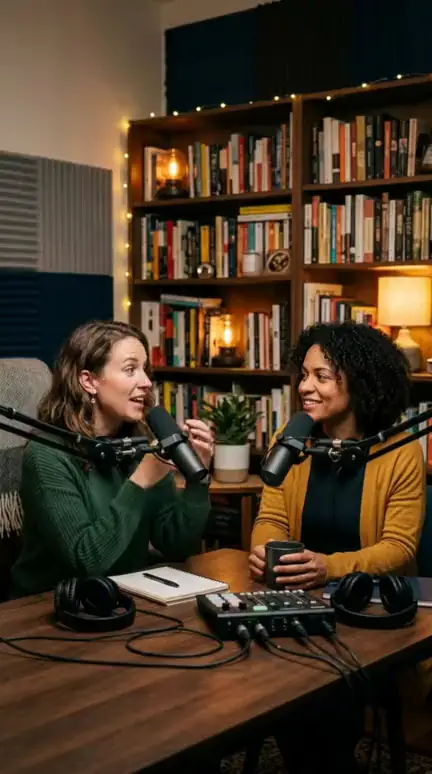
Auto-reframing fails when the software can't tell which subject matters or can't keep up with them. We've seen the same misses again and again, especially with two-person podcasts.
| Situation | What goes wrong |
|---|---|
| Two or more speakers | The window jumps or settles on the wrong person |
| Fast action or sports | Tracking lags behind the subject |
| Subject leaves the frame | The window drifts to empty space |
| Scene cuts | The crop carries over from the previous shot |
| On-screen text at the edges | Captions and graphics get sliced off |
| Dark or low-quality footage | Face detection drops out |
Manual fixes when tracking misses
Most misses are fixable in a couple of minutes with a short checklist:
- Add keyframes where the subject moves and re-center the window.
- Re-center once per shot after every cut.
- Use a stacked or split layout for two speakers, one above the other.
- Trim or skip clips where the action is too wide for 31.6% of the frame.
- Pick a better source, with a close, well-lit, single-subject shot.
Auto-reframe tools: what to look for
Look for face focus, multi-speaker handling, manual override and a live 9:16 preview. Without an override, a bad track leaves you stuck. Without a preview, you only find the cropped-off text after exporting. Many AI video clippers include auto-reframe as one step, and the WowReveal AI Clipper does too, finding the best moments and rendering 9:16 with captions. Whatever you use, scrub the preview before posting.
Where to go next
- How to Reframe a Landscape Video to 9:16 Without Cropping Faces — The how-to follow-up for applying this definition to your own footage.
- Choosing the Right Source Video for AI Clipping — Source choice decides how well tracking works.
- How to Turn a YouTube Video into Shorts (Step by Step) — A practical use case for 16:9 to 9:16 conversion.
- Repurposing Long Video into Shorts: The Complete Workflow — Shows where reframing fits in the full workflow.
- Best AI Video Clipper: Features to Compare Before You Choose — Helps you compare tools that include auto-reframe.
- From Source Video to Posted Short: The AI Production Pipeline — Pillar-level context for the reframing step.
- AI Clipper vs Manual Editing: How Much Time Does Each Take Per Short?
- What Is AI Slop in Short-Form Video?
Generate your reel right now
Paste a link to a long video — AI finds the best moments and turns them into ready Shorts with captions.


No link? Upload a file
- 30 free credits
- No card needed
- Voiceover in 9 languages
- Failed jobs refunded