CapCut AI Clipper vs Dedicated AI Clipper Tools: Which Should You Use?
CapCut's AI Clipper is free and fast for first drafts. Dedicated clippers win on volume. Here's a one-hour test to settle it on your own video.
In this article
In the capcut clipper vs ai clipper tools debate, CapCut's AI Clipper suits creators who want free, quick first-pass clips and will finish them by hand in the editor. Dedicated AI clippers suit people who clip long videos every day and need stronger highlight selection, captions and batch output. The right pick depends on your volume and how much finishing you want to do yourself, and you should verify it on your own video, not on anyone's promo reel.
So what's the best AI clipper for YouTube videos? The one that scores highest on your footage, your speakers and your posting schedule. This guide gives you the test to find out in about an hour.
Key takeaways
- CapCut AI Clipper is a good fit when you post a few clips a week, want zero upfront cost and enjoy polishing in the editor.
- A dedicated clipper earns its price when you process long videos daily and need consistent highlight picks, captions and batch output.
- Run the same 45-60 minute video through every tool and score five things: highlight quality, captions, reframing, export and price.
- Availability and limits change often. Check CapCut's official site and each tool's pricing page before you decide.
- Whatever tool you pick, clip only footage you own or have permission to use. No clipper fixes an originality problem.
Here's the quick view before the detail. Anything we can't confirm is marked "not stated" because plans and limits shift.
| CapCut AI Clipper | OpusClip-style dedicated clippers | WowReveal AI Clipper | |
|---|---|---|---|
| What it does | Suggests clips inside a full video editor | Clipping-first: finds, ranks and exports clips | Finds best moments, then finishes into a 9:16 short |
| Input | Long video you import | Link or upload (varies by tool) | Link or upload |
| Output | Clips you edit further in the timeline | Captioned vertical clips | Vertical video with animated captions, headline, music and cover |
| Pricing model | Free tier plus paid options; details not stated here | Typically credits or minutes; details not stated here | Free credits, no card; monthly plans and credit packs |
| Best for | Hands-on editors, low volume | Daily clippers, podcasts, streams | Creators who want a finished post, not just a cut |
What CapCut AI Clipper Does (and How It Works)
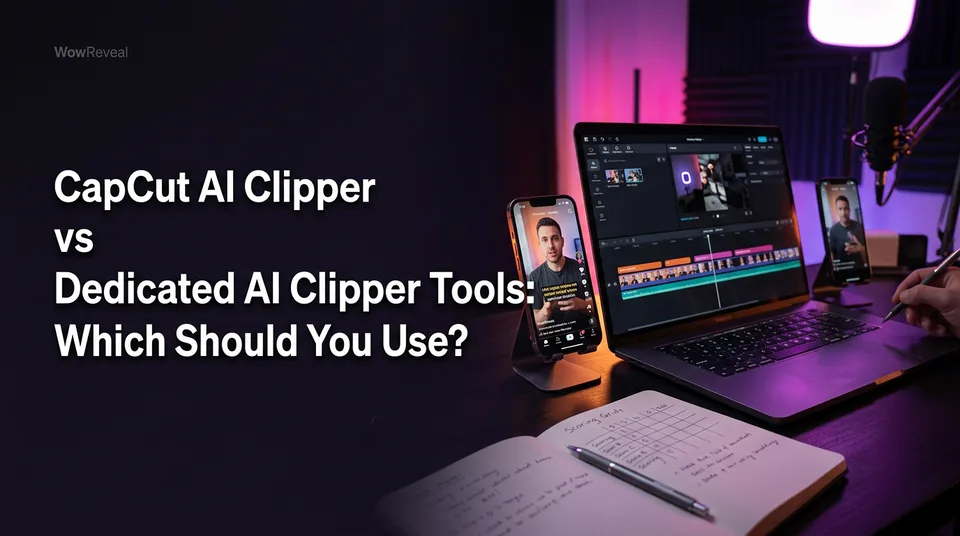
CapCut AI Clipper analyzes a long video you import and proposes shorter segments, which you then trim, caption and restyle inside CapCut's editor. The clipping is the starting point. The editor is the product.
Under the hood, tools like this generally read the transcript and audio, look for self-contained stretches with a clear point, and cut at sentence boundaries. CapCut doesn't publish a full explanation, so treat anything more specific as a guess and judge by output.
Where to find it and the typical steps
On CapCut Desktop, the AI Clipper has typically appeared as an option when you start a new project or import a long video. The usual flow is: import a 45-60 minute file, let the tool analyze it, review the suggested segments, then send the ones you like to the timeline.
From there you fix the captions, adjust the 9:16 crop and export. Some versions may offer a prompt or topic field to steer what it looks for. We can't confirm that for your build, so check what your version shows.
Is CapCut AI Clipper free?
CapCut has a free tier, and that's a real strength, but which AI features sit inside it can change by version, region and plan. Check the plan details on the official CapCut site the day you test.
Watch for three things: a watermark on exports, a cap on video length or number of clips, and features that need a paid subscription. Write down what you hit. It goes in your scorecard.
CapCut AI Clipper not showing or not working
When the AI Clipper doesn't show up, the cause is usually your version, your region or your account, not your video. An outdated desktop build is the first thing to rule out. Update the app, sign in, and look again.
Reddit threads on this are mixed. Some creators say the current version no longer behaves like an earlier AI clipping feature they relied on. That's anecdote, not a verified change log, but it's a good reason to confirm availability before you build a workflow around it. We cover the fixes step by step in the related troubleshooting guide below.
What a Dedicated AI Clipper Adds
A dedicated AI clipper is built around one job: turning a long video into many ranked, captioned vertical clips with little manual work. The difference from CapCut isn't magic. It's focus.
In practice, that focus shows up as highlight scoring across the whole video, batch processing, auto reframing that follows the speaker, ready-made animated captions, and sometimes direct publishing. If you're searching for the best AI clip maker, these are the features that separate the category.
Examples of the category (OpusClip and similar)
OpusClip is the name most people mean when they say dedicated clipper. Plenty of similar tools exist, all taking a link or upload and returning short clips.
WowReveal AI Clipper sits in the same category with a different emphasis. It finds the best moments, then also adds animated captions, a headline, music and a cover, and renders a finished 9:16 video. If you want a cut-only tool, that's more than you need. If you post daily, it removes steps.
Where dedicated tools still fail
Dedicated clippers still pick weak moments, especially on footage with crosstalk, music, or no clear speaker. We've watched creators accept a tool's top-ranked clip, post it, and see it die in the first three seconds because the hook was a mid-sentence ramble.
Automated scores predict "sounds self-contained," not "makes a stranger stop scrolling." You still choose. And caption errors on names, accents and jargon happen in every tool, so a human pass matters.
How We Compare Them: One Long Video, Same Test
The fair way to compare clippers is to feed every tool the same source video and score the same five criteria. Reviews that use different videos for different tools tell you nothing.
Pick the test video
Choose one 45-60 minute video with one or two speakers: a podcast episode, a livestream replay or a talk. It must be yours or fully permitted. Pick something typical of what you post, not your best-case episode.
Avoid heavy background music for the first test. You're measuring the tool, not stress-testing audio. Run a messier video second if you want to see how each tool handles it.
Scoring sheet you can copy
Make a simple table with one column per tool and these rows:
| Criterion | What good looks like | What to record |
|---|---|---|
| Highlight quality | Clips start on a hook and end on a payoff | Clip count, how many you'd actually post |
| Captions | Accurate names and jargon, readable style | Caption errors per clip |
| Reframing | Speaker stays centered in 9:16 | Clips needing manual crop fixes |
| Export | 1080×1920, no watermark, no re-encode surprises | Resolution, watermark yes/no |
| Price | Cost per usable clip is predictable | Credits or money spent, minutes of your time |
Time yourself from import to "ready to post" for three clips. That minutes-per-post number is usually what decides it. Total it all up and you have your answer without trusting anyone's marketing.
Highlight Quality: Which Picks Better Moments?
Highlight quality is the criterion that matters most, and no tool wins it on every video, so test it on yours. Is CapCut AI Clipper any good? For many first-pass jobs, yes. It surfaces candidates quickly and costs nothing to try.
What you're checking is "usable clips divided by total clips." If a tool returns 20 clips and 4 are postable, you've paid for 16 you'll delete. If another returns 8 and 5 are postable, it's the better tool even with fewer clips.
Also check boundaries. A good clip starts at a sentence start and ends on a finished thought. Mid-sentence cuts are the most common failure we see across every clipper.
Winner: depends on your content. Talk-heavy videos tend to suit transcript-driven tools of any kind; visual or sports footage needs a human eye whichever you use. The rank-and-batch approach of a dedicated clipper helps when you have 10 videos to get through, not one.
Captions, Reframing and Export
Captions, reframing and export decide how much hand-finishing each clip needs after the AI is done. A clip that cuts well but needs 10 minutes of caption fixes isn't saving you time.
Captions and languages
Good captions are accurate on names and jargon, styled to be readable on a phone, and timed word by word. Count the errors per clip in your test. Then check which languages each tool supports, because accuracy often drops outside English.
CapCut's strength here is manual control: you can restyle and fix every line. Dedicated tools usually give you a polished default style quickly. WowReveal adds animated captions automatically, and its AI voiceover covers 9 languages if you'd rather narrate a story than reuse the original audio.
Reframing to 9:16
Reframing means converting a 16:9 video into 9:16 vertical format while keeping the speaker in frame. Auto reframing that tracks a speaker is a headline feature of many dedicated clippers. In CapCut you may end up adjusting the crop manually, which is fine for three clips and tedious for thirty.
Test it on a two-person video where speakers swap. That's where reframing breaks. Don't assume any tool handles it; record how many clips needed a manual fix.
Export quality and watermark
Export at 1080×1920 for YouTube Shorts, Facebook Reels, TikTok and Instagram Reels alike. Check for a watermark on the free tier, since a visible logo is a poor look on a page you're trying to monetize.
Also check whether the tool stops at the cut or finishes the post. CapCut gives you the editor to add a headline, music and cover yourself. WowReveal's finishing step adds those, plus a post kit with titles, descriptions and hashtags. A cut-only tool leaves that work to you.
Winner: CapCut for hands-on control, a dedicated clipper for speed, WowReveal if you want the finished post in one pass.
Price and Limits Compared
CapCut is the cheapest place to start because its free tier lets you test the AI Clipper without a card, but free limits change, so confirm them before you plan around them. We won't quote numbers we can't verify.
Dedicated clippers usually charge in credits or processing minutes. That makes cost per usable clip the number to calculate: spend divided by clips you'd actually post. A cheap tool that returns 2 usable clips from an hour costs more per post than a pricier one that returns 6.
WowReveal gives free credits to start without a card, then monthly plans and one-time credit packs. Failed jobs are refunded automatically, which matters when you're batch-processing. Check the pricing page for current amounts.
Winner: CapCut for occasional use; for daily volume, compare cost per usable clip, not the sticker price.
CapCut vs OpusClip: The Head-to-Head Most People Search
CapCut is an editor with an AI clipping feature; OpusClip is a clipping tool with light editing. That one distinction answers most of the "capcut vs opusclip" question.
If your bottleneck is finding clips across many long videos, the clipping-first tool usually fits. If your bottleneck is making each clip look the way you want, an editor like CapCut fits. Neither is "the best AI clipper vs CapCut" in the abstract.
For an honest ai clipper comparison, run both through the scorecard above. Pay particular attention to minutes per ready-to-post clip, because that's where the editor-versus-clipper difference shows up in real life.
Best AI Clipper for YouTube Videos: How to Choose
The best AI clipper for YouTube videos is the one with the highest usable-clip rate on your footage at a cost per post you can sustain. For a single clip a week, that may be CapCut. For daily output, it's usually a dedicated tool.
If your destination is Shorts, remember the format rules. YouTube's Shorts help page covers current length and format, and those rules can change, so check before you set your clip length.
Best for each user type
| User type | Best fit | Why |
|---|---|---|
| Casual creator, a few clips a week | CapCut AI Clipper | Free to start, full editor for finishing |
| Daily poster | Dedicated AI clipper | Batch output and consistent captions save hours |
| Podcast or stream clipper | Dedicated clipper with speaker-aware reframing | Long source, many candidate moments |
| Agency with many pages | Dedicated tool with credits and finishing steps | Volume, repeatable branding and post copy |
| Creator who wants a finished post | WowReveal AI Clipper | Clips, captions, headline, music, cover and post kit in one flow |
Why are people leaving CapCut?
People mostly leave CapCut over feature changes, availability problems and inconsistent AI results, based on what creators post in Reddit threads. We can't verify the reasons behind each complaint, and CapCut remains a strong editor for many.
The practical lesson is to avoid building a daily workflow on a single feature whose behavior you don't control. Keep a backup option and re-test every few months.
CapCut Clipper Alternatives Worth Testing
Alternatives fall into three groups, and you only need to test one from each group at most. First, other dedicated clippers like OpusClip. Second, finishing-focused tools like WowReveal that go beyond the cut. Third, manual editing, which is CapCut itself used without the AI.
Reddit threads on "ai clipper capcut" are useful for spotting bugs and availability complaints, less so for quality, because people post when something breaks. Use them to know what to check, then trust your own scorecard.
For streams, gaming clips and highlight-heavy footage, test with a video of that type. A tool that's great on podcasts can be mediocre on gameplay.
Clip Safely: Permission and Originality Before You Post
Clip only footage you own or have clear permission to use, because no clipper changes the rules on originality or copyright. This is the part tool-vs-tool pages skip, and it's the part that costs pages their reach.
We've seen pages lose distribution for weeks after reposting other people's content with captions slapped on. Meta's Facebook content monetization rules and YouTube's Partner Program both look at originality, and platform rules change, so read the current policies yourself. And never try to evade Content ID or originality checks.
A safe workflow: clip your own podcast, stream or interview, or footage someone has explicitly licensed to you. Add real value with your own hook, commentary or story, then post.
Eligibility and earnings are always decided by the platforms, and nothing here is a promise of views or income.
Frequently asked questions
Is CapCut AI Clipper any good?
It's good for fast, free first-pass clips if you're willing to finish them in the editor. Its picks can be inconsistent, so check the share of clips you'd actually post on your own video before relying on it.
Why isn't CapCut AI Clipper showing up?
The usual causes are an outdated app version, your region, or your account or plan. Update CapCut Desktop, sign in again, and check the official site for current availability.
Is CapCut AI Clipper free?
CapCut has a free tier, but which AI features and limits it includes can change. Test on the free plan and note any watermark, length cap or paywall before committing.
What's the best AI clipper for YouTube videos?
The one with the highest usable-clip rate and lowest cost per usable clip on your own footage. Run the same 45-60 minute video through each tool and score highlights, captions, reframing, export and price.
Can I clip any YouTube video I find?
No. Clip only videos you own or have permission to use. Captions and a vertical crop don't make someone else's footage original.
Where to go next
- CapCut AI Clipper: Is It Good, and What to Do When It Doesn't Work — fixes for the "not showing" and "not working" problems covered above.
- How Does an AI Clipper Pick Highlights? Highlight Detection Explained — understand what the highlight-quality score is actually measuring.
- Free AI Video Clipper: What You Get, What the Limits Are, and When to Pay — a closer look at free tiers before you spend credits.
- Best AI Video Clipper: Features to Compare Before You Choose — extend your scorecard with more features.
- CapCut vs AI-First Shorts Tools: Which Saves More Time? — the time-saving angle on the same decision.
- AI Clippers for Twitch and Gaming Streams: Options, Free Tiers and Limits — if your source is streams rather than podcasts.
- Is YouTube Clipping Legal? Permission, Fair Use and Safe Practice — the permission rules behind safe clipping.
- Can You Post AI or Repurposed Video on Facebook Without Breaking Originality Rules? — keep clipped content monetization-safe.
- Repurposing Long Video into Shorts: The Complete Workflow — the full process once you've picked your tool.
Generate your reel right now
Paste a link to a long video — AI finds the best moments and turns them into ready Shorts with captions.


No link? Upload a file
- 30 free credits
- No card needed
- Voiceover in 9 languages
- Failed jobs refunded