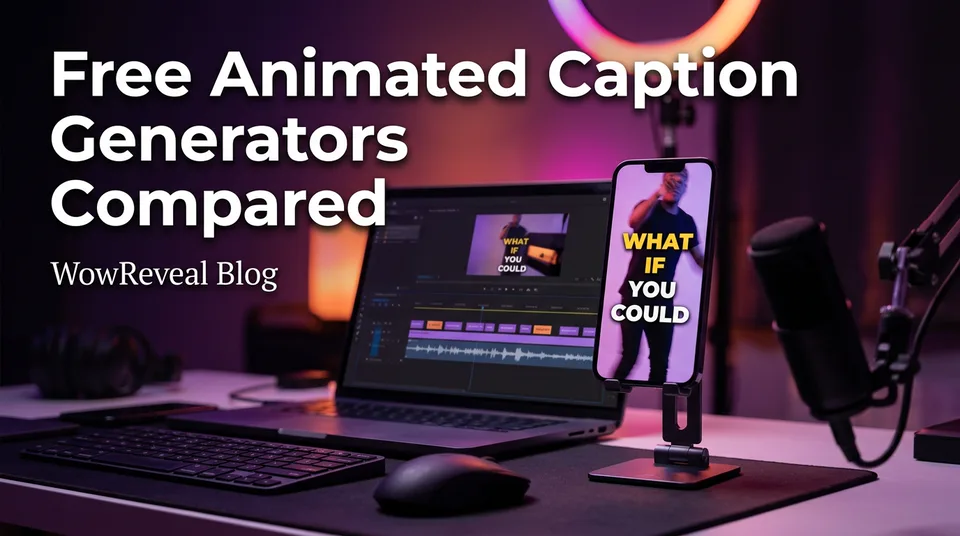
Free Animated Caption Generators Compared: Accuracy, Limits and Watermarks
Which free animated caption generator actually fits a page posting every day? We compare accuracy, languages, styles, watermarks and export caps.
In this article
The best free animated caption generator depends on your volume and the limits you hit: tools with no watermark and 1080p export suit occasional posts, while daily posters should pick one that captions inside the video workflow. We compared them on accuracy, language coverage, animated styles, and watermark and export limits. Free limits change often, so treat every number you read, including ours, as a reason to check the pricing page today.
Key takeaways
- Posting once a day or less: a browser tool like Kapwing, Vizard or Adobe Express is usually enough, provided the free export is clean and 1080p. Test one clip before you build a routine around it.
- Posting 3 or more a day: captions that live inside the render save more time than the prettiest standalone tool. Re-exporting 21 clips a week by hand is where free plans quietly stop being free.
- Accented or non-English speech: accuracy decides everything. Run your own 60-second test before trusting any demo.
- Watermark-free is rare on free tiers: some plans export clean video, many don't, and it changes. Verify before you commit.
- Agencies and 10+ videos a day: plan to pay. The question is which paid plan, not which free one.
How we compared free animated caption generators
We compared them on five criteria that decide daily use: accuracy, language coverage, animated style options, editability, and watermark and export limits. Brand reputation didn't count. A tool that looks great in its own demo and fails on your voice is useless to you.
We've watched page owners pick a tool from a slick landing page, caption a week of clips, then discover the free plan stamps a logo across the bottom of every export. That's a wasted week. So the criteria below are the ones that bite after day one.
Accuracy on accented and non-English speech
Accuracy is the share of words transcribed correctly, and the standard measure is word error rate (WER): errors divided by total words. Most demos use clean studio English. Your audience's reality is a fast speaker, an accent, background music, and names no dictionary contains.
Test it yourself. Take 60 seconds of your real audio, roughly 150 words. Run it through each tool and count the mistakes: wrong words, missed words, invented words. One error per 20 words is already 5%, and every fix costs you editing time.
Expect the worst results on proper names, slang and noisy clips. Expect non-English speech to vary far more between tools than English does.
Also separate two things that get confused. A tool's interface language is not its caption language. Only the second matters when your speaker isn't speaking English.
Animation styles and editing control
Animated captions mean word-by-word highlights, pop-in text and color changes that follow the speech. Style count matters less than control: can you change font, size, position and highlight color, and fix a wrong word without re-rendering from scratch?
Locked styles are the usual free-tier trade. The tool shows you ten styles and lets you export with two. Check which ones you can actually export, not which ones appear in the preview.
Editability is the quiet winner. A caption you can fix in 5 seconds beats a prettier one you can't touch.
Watermark, resolution and length limits
A watermark is a logo or tool name burned into your export. It's the first thing free plans add, and on a monetized page it looks like someone else's channel.
Three caps matter after that: resolution (aim for 1080×1920 at 9:16, since a 720p cap shows on a phone), maximum video length, and monthly minutes or credits. Reels and Shorts clips often run 30 to 90 seconds, so a length cap rarely hurts. A monthly minutes cap does.
Free animated caption generators at a glance
No single free tool wins on every column, and nearly every limit below can change without notice. Where we don't have a figure we can stand behind, the table says so rather than guessing.
| Tool | Type | Free limit | Watermark on free | Animated styles | Best for |
|---|---|---|---|---|---|
| Kapwing | Browser editor | Not stated, verify | Verify on current plan | Yes, some locked | Occasional edits |
| Vizard | Browser clipper | Not stated, verify | Verify on current plan | Yes | Long video to clips |
| Adobe Express | Browser editor | Not stated, verify | Verify on current plan | Yes, basic | Quick one-off captions |
| Captions (captions.ai) | Caption-first app | Not stated, verify | Verify on current plan | Yes | Talking-head creators |
| CapCut | Editing app | Not stated, verify | Verify on current plan | Yes | Phone editing |
| Choppity | Caption-first tool | Not stated, verify | Verify on current plan | Yes | Clip-plus-caption jobs |
| WowReveal | All-in-one Shorts maker | Free credits to start, no card | Check the credit plan | Animated captions in the render | Daily posting |
Here's the part competitors never show: a page posting 3 Reels a day needs 21 captioned videos a week, about 90 a month. At 45 seconds each, that's roughly 16 minutes of footage a week. If a free plan gives you a handful of minutes or a few exports a month, you'll hit the cap before the first week ends.
Browser-based caption tools: Kapwing, Vizard and Adobe Express
Yes, there is a free automatic captions generator in your browser, and Kapwing, Vizard and Adobe Express all offer one. You upload a file, the tool transcribes it, you pick a style, and you export a captioned MP4. No install, which is why people search "free subtitle generator ai" and land here first.
Kapwing works like a full editor, so you get control over text, timing and layout. That control costs a few more minutes per clip. Vizard is built around turning long videos into clips, with captions as part of that job. Adobe Express is the simplest of the three: quick and familiar, with less depth on animation.
Where they fall short for daily posting is repetition. Every clip means upload, caption, style, export, download, then upload again to the platform. Once is fine. Twenty-one times a week is a second job.
The verdict: for one or two videos a day, a browser tool is fine if the free export is clean. Beyond that, it depends on how much you value your hours.
Caption-first apps: Captions, CapCut and Choppity
The best caption app for Reels is the one whose accuracy and styles survive your own voice test. The caption-first apps are Captions (captions.ai), CapCut auto captions and Choppity, and they're built around the caption rather than treating it as an extra.
Captions is aimed at talking-head creators and leans on polished, trendy styles. CapCut is a phone editor with auto captions inside a full timeline, which makes it a favorite on mobile. Choppity pairs clipping with captioning. If you're searching for Captions AI alternatives, these two are the natural comparisons.
Is caption AI free? Partly. Most of these tools give you a free tier and reserve the best styles, exports or minutes for paid plans, and the split moves. We won't quote a limit we can't verify. Open each pricing page the day you decide.
One honest note: a caption-first app is excellent at captions and silent on everything around them. You still need the clip, the hook, the cover and the post text from somewhere else.
The verdict: for creators who film themselves and edit on a phone, a caption-first app is the better pick. It depends on how much of the rest of the video you build elsewhere.
Captions built into a Shorts maker: WowReveal
A Shorts maker with built-in captions removes the separate captioning step entirely, and that's where WowReveal fits. You paste a link or upload a file. It writes the story, voices it with AI voiceover in 9 languages, finds the best moments with the AI Clipper, adds animated captions, a headline, music and a cover, then renders the 9:16 video.
The difference is the number of exports. The captions are generated as part of the render, so there's no round trip between a clipper, a caption tool and a poster. For a page publishing several videos a day, that's the saving.
It's also the right fit for the faceless and narrated formats, where the caption timing is generated alongside the voiceover instead of transcribed afterwards from audio that might be noisy.
Where it isn't the better pick: if you already have a finished, hand-edited video and only want to add subtitles to it, a dedicated caption tool is simpler. WowReveal starts you with free credits and no card, so you can test it on one real clip. Failed jobs are refunded automatically.
What free plans really restrict
Free plans restrict six things: watermark, resolution, clip length, monthly minutes or credits, locked styles and export formats. Any one of them can make a plan useless for daily work, and the vendor decides which, so read the limits page rather than the headline.
Is a free AI caption generator really free? For a trial, yes. For a routine, rarely. The tool needs to make money somewhere, and it picks the place that hurts a daily poster most.
How to get animated subtitles with no watermark
Animated subtitles with no watermark are possible on some free plans, but you have to export one test clip and look at the last frames and corners before you trust it. Watermarks can sit in a corner, along the bottom or as an end card, so a preview won't show them.
Three routes work. Pick a tool whose free tier exports clean, accept a resolution cap, or use credits from a plan that renders without a stamp. Never crop or cover a logo to hide it, as that breaks the terms you agreed to.
Hidden costs: re-exports and failed jobs
Re-exports are the hidden cost of free plans, because a mistaken word means another render against the same cap. If a typo costs you a credit, 5% inaccuracy costs you more than the plan appears to.
Ask one question: what happens when a job fails? Some tools charge for the attempt, some refund. WowReveal refunds failed jobs automatically, and that kind of policy matters more than the headline credit count.
How to create animated captions in 5 steps
You create animated captions by transcribing the audio, correcting the text, choosing a readable style, placing it in the safe zone and exporting at 9:16. It takes 5 to 10 minutes per clip in a standalone tool.
- Upload or paste your video. Use the cleanest audio you have. Music louder than speech hurts accuracy.
- Generate the transcript and correct names, numbers and slang by hand.
- Pick a style with one highlight color, a bold sans-serif font and two to four words on screen at a time.
- Check the 9:16 safe zone. Keep captions out of the bottom fifth of the frame, where the interface sits on Facebook Reels, Instagram Reels, YouTube Shorts and TikTok. Interfaces change, so confirm in each app's preview.
- Export at 1080×1920 and watch the full clip on your phone before posting.
Burned-in captions are part of the picture and can be animated. An SRT file is a separate text track that viewers can toggle and that can't be styled the same way. YouTube documents the SRT route in its official help on subtitles and captions, and Meta's Business Help Center covers caption options for video publishing. Platform features change, so check the current pages.
Which one fits your daily posting volume
The right tool depends on how many videos you publish a day, because volume turns small friction into hours. These are our recommendations, not rankings.
1 video a day
One video a day is 7 a week, and a browser tool or caption-first app handles that comfortably. Pick the one with the best accuracy on your voice and a clean free export. If you're filming yourself, a caption-first app is usually the smoother route.
3 or more videos a day
Three a day is 21 a week, and that's where caption-inside-the-workflow tools pull ahead. Every separate step multiplies by 21. This is the point where a free standalone plan stops covering you and an all-in-one maker like WowReveal earns its place, because clipping, captions and render happen together.
Agencies running many pages
An agency posting 10+ videos a day should pay and stop comparing free tiers. At that volume, the real questions are batch handling, consistent styles across pages (a brand kit helps), and how failed jobs are treated. Use the free tiers only to run the accuracy test.
| Volume | Likely pick | When to pay |
|---|---|---|
| 1/day | Browser tool or caption-first app | When a watermark or minutes cap appears |
| 3+/day | All-in-one maker with built-in captions | Once re-exports eat your hours |
| 10+/day or agency | Paid plan with batch workflow | From day one |
Mistakes to avoid when choosing a caption tool
The most common mistake is choosing a tool from its demo clip instead of your own audio. Demos use clean speech and the best style. You'll use messy audio and the style that isn't locked.
A few others we see again and again:
- Ignoring caption editing. If fixing a word means starting over, you'll skip fixing it and post the error.
- Ignoring the safe zone. Captions hidden under the interface are the same as no captions. Our guide to retention covers why readable captions matter at all.
- Trusting a stale limits page. Free limits move. A review from last year, including this one eventually, can be wrong.
- Choosing style over legibility. Four colors and a glow look clever and read badly on a small phone.
- Skipping the full playback. Watch the exported file to the last frame, on a phone, before you post.
Pick one tool, caption five real clips, and count your errors. That test is worth more than any comparison page.
Frequently asked questions
What is the best free caption generator for Reels?
It depends on your volume. For one video a day, a browser tool like Kapwing, Vizard or Adobe Express works if the free export is clean and 1080p. For 3 or more a day, a tool that captions inside the video render saves more time. Verify current limits first, since they change.
Is there a free automatic captions generator without a watermark?
Some free plans export clean video and many don't, and this changes often. Export one short test clip and check the corners, the bottom and the final frames before you rely on it. Don't crop or cover a watermark to hide it.
Is caption AI free?
Usually only partly. Most caption tools offer a free tier with limits on minutes, resolution, styles or exports, and keep the full feature set for paid plans. Check the current pricing page, because the split moves.
How do I create animated captions for Instagram Reels?
Transcribe the audio, fix the errors, choose a bold one-color-highlight style, keep the text out of the bottom fifth of the 9:16 frame and export at 1080×1920. Preview it in the Instagram app before you post.
How can I test caption accuracy on accented speech?
Run the same 60 seconds of your own audio through each tool and count wrong, missed and invented words. Divide errors by about 150 words for a rough word error rate. Pay particular attention to names and noisy sections.
Where to go next
- Animated Captions for Reels: Do They Help Retention? — Start here to see why captions matter before you choose a tool.
- How to Add Animated Captions to a Reel, Step by Step — The full procedure behind the 5-step summary above.
- Animated Captions for Shorts and Reels: Styles, Settings and Mistakes to Avoid — Style and settings detail beyond tool choice.
- Short Video Retention: How to Get Reels and Shorts Watched to the End — Shows where captions sit in the bigger retention picture.
- Free AI Shorts Maker: What You Actually Get Without a Card — A free-tier breakdown for all-in-one makers.
- Free AI Video Clipper: What You Get, What the Limits Are, and When to Pay — The same free-limits logic applied to clipping.
- Best AI Short Video Maker for Page Owners: What to Compare Before You Pay — The next step if you're comparing full makers.
- Reels Caption Fonts, Size and Safe Zones for Mobile
- AI Clippers for Twitch and Gaming Streams: Options, Free Tiers and Limits
- Free Reel Cover Makers Compared: Templates, Watermarks and Limits
Generate your reel right now
Paste a link to any video — WowReveal writes the story, voices it and adds captions, a headline and music. Ready for Reels, Shorts and TikTok.


No link? Upload a file
- 30 free credits
- No card needed
- Voiceover in 9 languages
- Failed jobs refunded